

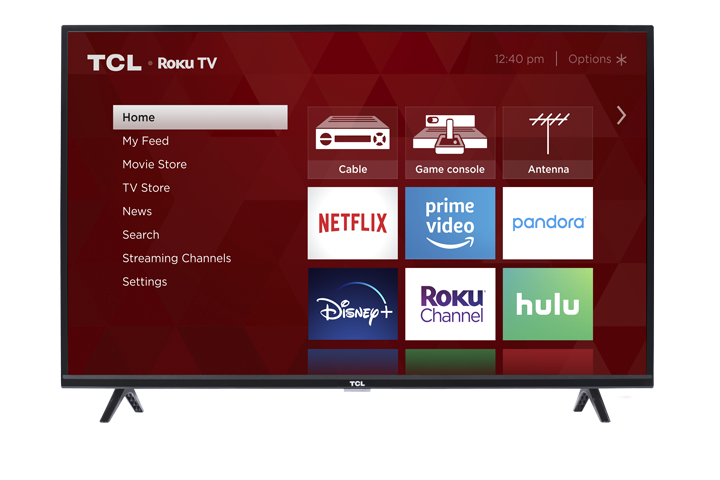

The Live TV Channel Guide on your TCL Roku TV may display local antenna channels and free streaming channels together in one guide. If you prefer to view only the channels received through your antenna, you can hide all streaming channels or remove individual channels from the guide.
Note: Menu names and available options may vary slightly depending on your Roku TV model, region, and software version.
Before You Begin
Before changing the channel guide, confirm that your antenna is securely connected to the ANT/CABLE or Antenna connection on the TV and that a channel scan has been completed.
This is important because hiding streaming channels will not add or restore local antenna channels. Your TV must already be receiving those channels for them to remain visible in the guide.
How to Hide All Streaming Channels
Use this option when you want the Live TV Channel Guide to display only channels received through your antenna.
- Press the Home button on your Roku TV remote.
- This returns you to the Roku TV Home screen, where the main TV settings can be accessed.
- Scroll and select Settings.
- The Settings menu contains the controls used to manage your TV inputs, channel guide, network connection, and system preferences.
- Select TV inputs.
- This section allows you to manage the devices and television sources connected to your Roku TV, including the Live TV input.
- Select Live TV.
- Selecting Live TV opens the settings that specifically control antenna channels and the Live TV Channel Guide.
- Select Hide streaming TV channels.
- This option controls whether Roku’s free streaming channels appear alongside your local antenna channels.
- Check the box next to Hide all.
- Selecting Hide all removes the free streaming channels from the Live TV Channel Guide, making it easier to browse only the channels received through your antenna.
- After selecting this option, reopen the Live TV Channel Guide and confirm that the streaming channels are no longer listed.
How to Show Streaming Channels Again
You can restore the streaming channels at any time by turning off the Hide all setting.
-
Press the Home button on your Roku TV remote.
- This returns you to the Home screen so you can access the TV settings.
-
Select Settings.
- The setting used to restore streaming channels is located within the main Settings menu.
-
Select TV inputs.
- The Live TV Channel Guide is controlled through the TV input settings.
-
Select Live TV.
- This opens the options that manage your antenna and streaming channel lineup.
-
Select Hide streaming TV channels.
- This menu shows whether all streaming channels are currently hidden.
-
Uncheck the box next to Hide all.
- Removing the checkmark allows Roku’s free streaming channels to appear in the Live TV Channel Guide again.
- Return to the guide and confirm that the streaming channels are visible.
How to Hide Individual Channels
Use this option when you want to keep most channels visible but remove specific antenna or streaming channels from the guide.
- Open the Live TV Channel Guide.
- Opening the guide allows you to select the exact channel you want to manage.
- Highlight the channel you want to hide.
- The highlighted channel is the one the TV will apply the next action to.
- Press the Star/Options button (*) on your Roku TV remote.
- The Star button opens additional settings and management options for the selected channel.
- Select Manage channels.
- This option opens the tools used to customize which channels appear in the guide.
- Select Manage channel lineup.
- The channel lineup screen displays all available antenna and streaming channels that can be shown or hidden.
- Highlight each channel you want to hide and press OK to place a checkmark next to it.
- Checking a channel removes it from the guide, helping you create a shorter and more personalized channel lineup.
- To show a hidden channel again, return to Manage channel lineup and remove the checkmark next to that channel.
If Streaming Channels Still Appear
If streaming channels remain visible after selecting Hide all, follow the steps below in order.
Confirm That Hide All Is Still Enabled
Go to:
Settings > TV inputs > Live TV > Hide streaming TV channels
Confirm that the box next to Hide all is checked.
This is important because the setting may not have been saved, or it may have been changed after a software update or system restart.
Restart the Roku TV
Go to:
Settings > System > Power > System restart > Restart
Restarting the TV reloads the Roku software and refreshes the Live TV Channel Guide. This can resolve temporary software issues that prevent the guide from updating correctly.
Note: On some models, the Power menu may not appear. In that case, go to:
Settings > System > System restart > Restart
Check for a Software Update
Go to:
Settings > System > Software update > Check now
Checking for an update is important because Roku software updates may correct channel guide problems, improve performance, or change how certain menu options work.
Your Roku TV must be connected to the internet to check for and install an update.
Reopen the Live TV Channel Guide
After restarting the TV or installing an update, open the Live TV Channel Guide again.
Reopening the guide forces the TV to load the updated channel lineup and allows you to confirm whether the streaming channels were successfully removed.
Important Information
- Hiding streaming channels does not uninstall streaming apps from the Roku TV Home screen.
- This setting only changes what appears inside the Live TV Channel Guide.
- Hiding a channel does not cancel a subscription or remove your Roku account.
- Antenna channels will only appear if an antenna is connected and a channel scan has been completed.
- Channel availability may vary based on your location, antenna reception, internet connection, and Roku software version.
Conclusion
Your TCL Roku TV allows you to customize the Live TV Channel Guide by hiding all streaming channels or removing individual channels you do not want to see. After making your changes, reopen the guide to confirm that your preferred channel lineup is displayed.