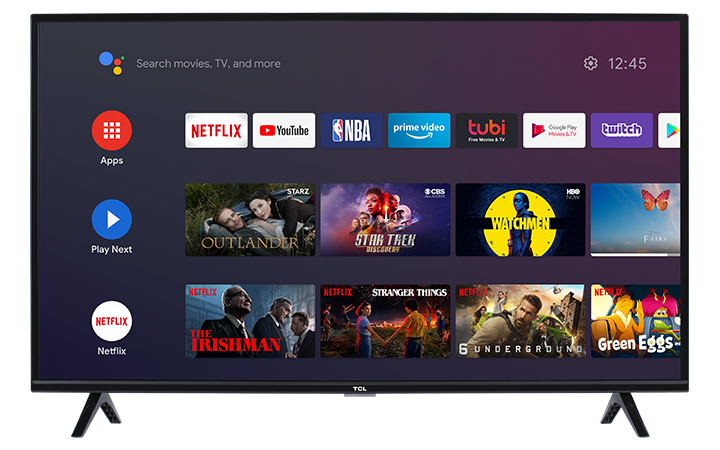

A factory reset restores your TCL Android TV to its original settings. This can help resolve persistent issues such as:
- The TV freezing or responding slowly
- Apps not opening, loading, or working correctly
- Wi-Fi or network connection problems
- Settings that will not save
- Unexpected software behavior
- Problems that continue after restarting the TV
A factory reset should normally be used after simpler troubleshooting steps, such as restarting the TV, checking the internet connection, and updating the TV’s software, have not resolved the problem.
Before You Begin
A factory reset permanently erases the information stored on the TV, including:
- Downloaded apps
- Google accounts
- Wi-Fi network information
- App login information
- Picture and sound preferences
- Parental controls and other customized settings
After the reset, you will need to set up the TV again as though it were being used for the first time.
Before continuing, make sure you have the following information available:
- Your Wi-Fi network name
- Your Wi-Fi password
- Your Google account email address and password
- Login information for streaming services you plan to reinstall
Why this is important:
Having this information ready will make it easier to reconnect the TV, sign back into your accounts, and restore your preferred apps after the reset.
Do not unplug or turn off the TV while the factory reset is in progress.
Why this is important:
Interrupting the reset could prevent the TV from completing the process correctly and may cause additional software or startup problems.
Perform a Factory Reset Using the TV Menu
The following steps apply when you can still access the TV’s settings menu.
Menu names may vary slightly depending on the TV model and software version.
Step 1: Open Settings
Using your TCL Android TV remote, press the Settings button.
Why this step is needed:
The factory reset option is located within the TV’s system settings. Opening Settings gives you access to the controls used to manage the TV’s software and stored information.
Step 2: Select More Settings
Scroll through the menu and select More Settings.
Why this step is needed:
The first Settings panel may only display commonly used options. More Settings opens the complete Android TV settings menu.
Step 3: Select Device Preferences
Select Device Preferences.
Why this step is needed:
Device Preferences contains settings that affect the entire TV, including storage, system information, and reset options.
Step 4: Select Reset
Scroll down and select Reset.
Why this step is needed:
This opens the menu used to remove stored data and return the TV to its original factory configuration.
Step 5: Select Factory Data Reset
Select Factory data reset.
Why this step is needed:
This option confirms that you want to erase the accounts, apps, network information, and customized settings currently stored on the TV.
Step 6: Confirm the Factory Reset
On the warning screen, select Factory data reset again.
Why this step is needed:
The additional confirmation helps prevent the TV from being reset accidentally. Review the warning before continuing, because the erased information cannot be recovered from the TV afterward.
Step 7: Select Erase Everything
Select Erase everything.
Why this step is needed:
This is the final confirmation that begins the factory reset process.
Step 8: Enter the PIN
If prompted, enter the required PIN and select OK.
Why this step is needed:
The PIN helps prevent someone from erasing the TV or changing protected settings without permission.
The TV should begin the reset process after the correct PIN is entered.
What Happens During the Reset
The TV will erase its stored information and restart automatically. The screen may turn off and back on several times during this process.
Do not press buttons, unplug the power cable, or attempt to restart the TV.
Why this is important:
The TV needs uninterrupted time to remove the existing data and reinstall its original settings. Allowing the process to finish helps ensure the TV restarts correctly.
Set Up the TV Again
When the factory reset is complete, the TV will return to the initial setup screen.
Follow the on-screen instructions to:
- Select your language and region.
- Connect the TV to Wi-Fi or Ethernet.
- Sign in to your Google account, if desired.
- Accept the applicable terms and permissions.
- Reinstall your preferred apps.
- Sign back into your streaming services.
- Readjust your picture, sound, accessibility, and other preferences.
Why these steps are needed:
The reset removes the TV’s previous setup information. Completing the initial setup reconnects the TV to your home network and restores access to apps, streaming services, and Google features.
Apps and settings are not always restored automatically, even when you sign back into the same Google account.
If You Forgot the PIN
If you do not know the PIN being requested, try a PIN that was previously created for:
- Parental controls
- TV restrictions
- Purchases
- Restricted profiles
Be careful when trying different PINs, as repeated incorrect attempts may temporarily prevent additional entries on some models.
Why the PIN is requested:
The PIN is a security feature designed to prevent unauthorized users from erasing the TV or removing account restrictions.
If you cannot complete the reset because the PIN is unknown, contact TCL Support for assistance. Have the TV’s model number and serial number available when contacting support.
If the Factory Reset Does Not Resolve the Problem
After setting up the TV again, test the feature that was previously not working before reinstalling every app or changing multiple settings.
Why this step is helpful:
Testing the TV while it is still close to its original factory configuration can help determine whether the issue is caused by the TV itself, a downloaded app, a connected device, or a customized setting.
If the issue returns after installing a particular app or connecting an external device, remove or disconnect that item and test the TV again.
Contact TCL Support if the original issue continues after the factory reset and initial setup have been completed.