

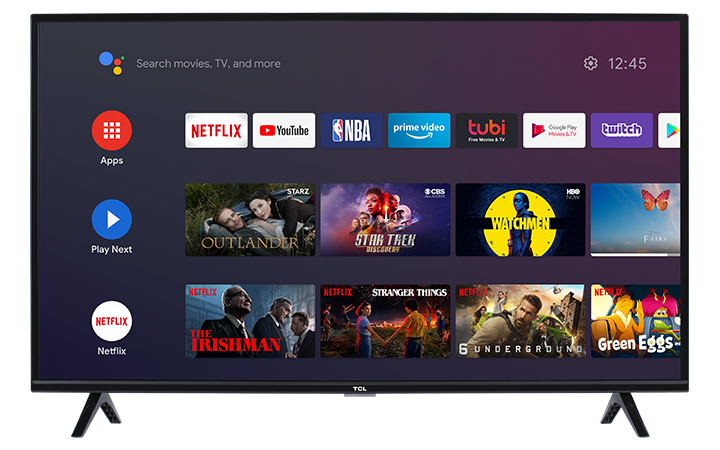

You can customize when your TCL Android TV starts the screen saver, enters sleep mode, or turns off automatically.
Note: Menu names and available options may vary by TV model and software version.
Open the Screen Saver Settings
- Press the Home button on your remote to open the Android TV Home screen.
This allows you to access the TV’s main settings. - Select the Settings icon, then press OK.
This opens the available TV settings. - Select Device Preferences, then press OK.
- Select Screen saver, then press OK.
Available Screen Saver Options
Screen saver
Choose what appears when the TV is inactive:
- Disable screen saver
- Backdrop
- Colors
This lets you select the screen saver style you prefer or turn the feature off.
When to start
Choose how long the TV remains inactive before the screen saver begins:
- 5 minutes
- 15 minutes
- 30 minutes
- 1 hour
- 2 hours
This helps prevent a still image from remaining on the screen for an extended period.
Put device to sleep:
Choose how long the TV remains inactive before entering sleep mode. Select the preferred duration shown on your TV.
This can reduce power usage when the TV is left unattended.
Sleep timer:
Set the TV to turn off automatically after a selected amount of time.
This is useful when watching TV before going to sleep.
Start now:
Select this option to immediately display the screen saver.
This lets you preview the selected screen saver without waiting for the inactivity timer.
You're All Set
Your TCL Android TV will now use the screen saver and sleep settings you selected. You can return to this menu at any time to make changes.