

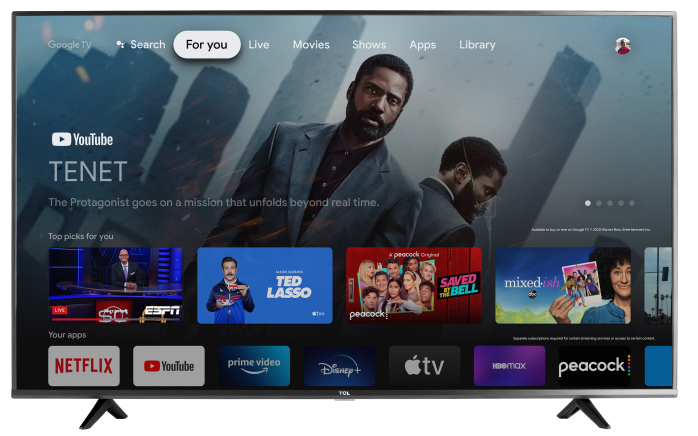

Your TCL Google TV includes voice control, allowing you to search for entertainment, open apps, control playback, ask questions, and manage compatible smart-home devices.
Depending on your TV model, software version, location, and Google Account, the voice assistant may appear as either Google Assistant or Gemini for TV. This is normal, and the basic voice-control steps are similar.
Note: Menu names and available features may vary by TV model and software version.
Set Up Voice Control
Step 1: Connect the TV to the Internet
- Go to Settings > Network & Internet and confirm that your TV is connected.
Why this matters: Google Assistant and Gemini require an internet connection to process most voice requests and search for content.
Step 2: Sign In to Your Google Account
- Go to Settings > Accounts & Profiles and confirm that your Google Account is listed. If needed, select Add account and follow the on-screen instructions.
Why this matters: Signing in enables personalized voice features, content recommendations, and access to supported Google services.
Step 3: Check for System
- UpdatesGo to Settings > System > About.
- Select System update.
- Install any available updates.
Why this matters: Updates may provide voice-assistant improvements, compatibility updates, and fixes for microphone or remote-control issues.
Step 4: Activate the Voice Assistant
- Press and hold the Assistant or Microphone button on your TCL remote.
- Follow any on-screen setup prompts.
- Continue holding the button while speaking into the remote.
Why this matters: The first use may require you to accept permissions or complete voice-assistant setup.
When using the remote’s microphone button, you do not need to say “Hey Google” first.
Use Hands-Free Voice Control
Some TCL Google TV models support hands-free voice control.
- Make sure the TV’s physical microphone switch is turned on. The switch may be located on the side, back, or underside of the TV.
- Go to Settings > Accounts & Profiles > your account > Voice assistant.
- Turn on Hands-free mic, if available.
- Say “Hey Google” or “OK Google,” followed by your request.
Why this matters: Both the physical microphone and hands-free software setting must be enabled for the TV to hear commands without the remote.
If you do not see a hands-free setting, your model may require you to use the microphone button on the remote.
Voice Commands to Try
- “Open YouTube.”
- “Find action movies.”
- “Play relaxing music.”
- “Pause.”
- “Turn up the volume.”
- “What’s the weather?”
- “Show me the front door camera.”
- “What can you do?”
Some commands depend on your model, location, installed apps, subscriptions, and connected smart-home devices.
Supported Google Assistant Languages
Google Assistant on Google TV currently supports:
- Chinese (Traditional)
- Danish
- Dutch
- English
- French
- German
- Hindi
- Italian
- Japanese
- Korean
- Norwegian
- Portuguese (Brazil)
- Spanish
- Swedish
Language availability and individual features may vary by country or region. Gemini for TV has separate device, language, region, profile, and age requirements.
Troubleshooting Voice Control
Complete the following steps in order. Test the microphone after each step.
Step 1: Check the Remote Batteries
- Remove and reinstall the remote batteries, making sure they match the positive and negative markings. If the problem continues, install a fresh set.
Why this matters: The remote may still control basic TV functions when its batteries are weak, but the Bluetooth connection needed for voice control may become unreliable.
Step 2: Speak Directly Into the Remote
- Press and hold the Assistant or Microphone button, hold the remote near you, and speak clearly into its microphone.
Why this matters: Voice commands may not be detected if the button is released too soon, the microphone is covered, or the remote is too far away.
Step 3: Re-Pair the Remote
- Stand within approximately three feet of the TV.
- Press and hold the Home and OK buttons simultaneously.
- Continue holding them until the pairing process begins.
- Follow any instructions displayed on the TV.
Why this matters: The voice remote uses Bluetooth for microphone features. Basic buttons may continue working through infrared even when the Bluetooth connection has been lost.
Step 4: Confirm the Internet Connection
Go to Settings > Network & Internet and verify that the TV is connected. Open a streaming app to test the connection.
Why this matters: The assistant may open but fail to provide results when the TV has a weak or unavailable internet connection.
Step 5: Check the Google Account and Apps-Only Mode
- Go to Settings > Accounts & Profiles or Accounts & Sign In.
- Confirm that you are signed in to a Google Account.
- Select your profile and make sure Apps-only mode is turned off.
Why this matters: Search and Google Assistant are unavailable while Apps-only mode is enabled. Voice features may also be limited on children’s profiles or unsupported accounts.
Step 6: Check the Hands-Free Microphone
If the remote microphone works but “Hey Google” does not:
- Confirm that your TV supports hands-free voice control.
- Turn on the TV’s physical microphone switch.
- Go to Settings > Accounts & Profiles > your account > Voice assistant.
- Turn on Hands-free mic, if available.
Why this matters: Hands-free voice control is separate from the microphone built into the remote and must be enabled independently.
Step 7: Confirm the Language
- Make sure the TV and voice-assistant language are supported and set correctly.
Why this matters: An unsupported or mismatched language can prevent the assistant from recognizing commands accurately.
Step 8: Restart the TV
Go to Settings > System > Restart.
If the menu is unavailable:
- Unplug the TV from the electrical outlet.
- Wait at least 60 seconds.
- Plug the TV back in and try voice control again.
Why this matters: Restarting clears temporary software, network, and Bluetooth connection problems without deleting your apps or settings.
If You Still Need Help
Contact TCL Support if the microphone still does not respond after completing these steps. Have the following information ready:
- TV model number
- TV serial number
- Software version
- Remote model number, if available
- Exact message displayed on the TV
- Description of the troubleshooting already completed
Providing this information helps TCL Support identify whether the issue involves the remote, account, software, or TV microphone.