

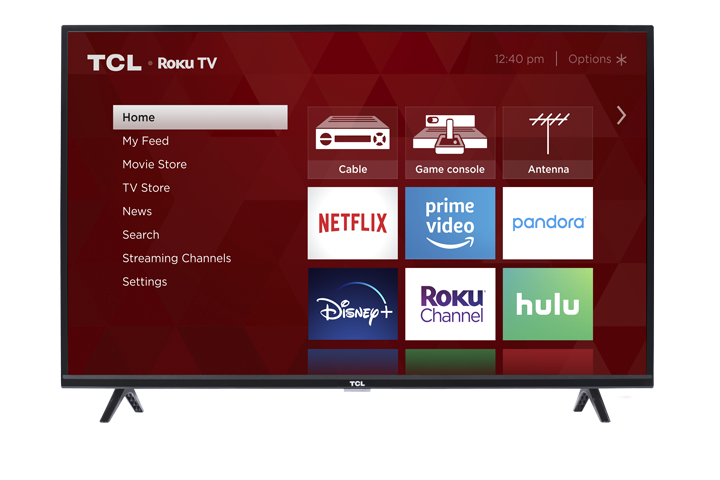

If your TCL Roku TV is stuck on the Roku logo screen, keeps restarting, or shows the Recovery Mode screen, the TV may need to restore its software. Follow the steps below to help get your TV working again.
Before You Start
Recovery Mode may be helpful if your TCL Roku TV:
- Is stuck on the Roku logo screen
- Keeps restarting during startup
- Freezes during or after a software update
- Shows a Recovery Mode screen
- Will not fully load to the Roku Home screen
Important: A factory reset or software restore may erase your settings, installed channels, saved preferences, and Roku account connection from the TV.
Step 1: Restart the TV
Before using Recovery Mode, try restarting the TV.
- Unplug the TV from the power outlet.
- Wait at least 60 seconds.
- Plug the TV back in.
- Turn the TV on and check if it starts normally.
If the TV is still stuck, frozen, or restarting, continue to the next step.
Step 2: Enter Recovery Mode
- Locate the Reset button on the back, side, or bottom of your TCL Roku TV.
- On some models, this may be a small pinhole button.
- You may need a paperclip or similar object to press it.
- Make sure the TV is plugged in and powered on.
- Press and hold the Reset button for at least 20 seconds.
- Release the button when the TV restarts and shows the Recovery Mode screen.
Note: If the Recovery Mode screen does not appear after about 30 seconds, your TV model may not support Recovery Mode, or the TV may need service.
Step 3: Follow the On-Screen Recovery Steps
Once the Recovery Mode screen appears, follow the instructions shown on the TV.
You may be asked to:
- Select your language.
- Connect the TV to your wireless network.
- Enter your Wi-Fi password.
- Allow the TV to check for and install the latest Roku software.
Make sure your internet connection is working before starting this process. If possible, move the TV closer to your router or restart your modem/router before trying again.
Step 4: Allow the Restore to Complete
During the restore process:
- Do not unplug the TV.
- Do not press the Reset button again.
- Keep the TV connected to a stable power source.
- Wait for the TV to restart on its own.
The TV may take several minutes to complete the recovery process.
Step 5: Set Up the TV Again
After the restore is complete, follow the on-screen setup instructions.
You may need to:
- Choose your language
- Connect to Wi-Fi
- Activate or sign in to your Roku account
- Reinstall or sign back into streaming apps
- Adjust picture, sound, and accessibility settings again
If the TV Is Still Stuck in Recovery Mode
If the TV does not complete the restore or returns to the Recovery Mode screen, try the following:
- Unplug the TV from power.
- Wait 5 minutes.
- Plug the TV back in.
- Try the Recovery Mode steps again.
- Restart your modem/router and confirm your internet is working.
- Try connecting the TV to a different network, such as a mobile hotspot, if available.
If Recovery Mode Does Not Fix the Issue
If your TCL Roku TV still will not complete the restore, will not connect to the internet, or continues returning to Recovery Mode, please contact TCL Support for further assistance.
Have the following information ready:
- TV model number
- Serial number
- A brief description of what appears on the screen
- Any error message shown during Recovery Mode
Important Reminders
- Recovery Mode is intended for startup and software-related issues.
- A factory reset or recovery restore may erase saved settings and installed channels.
- Do not unplug the TV while software is being restored or updated.
- Use a stable internet connection during the recovery process.
- If Recovery Mode does not appear or the TV cannot complete the restore, the TV may require service.