

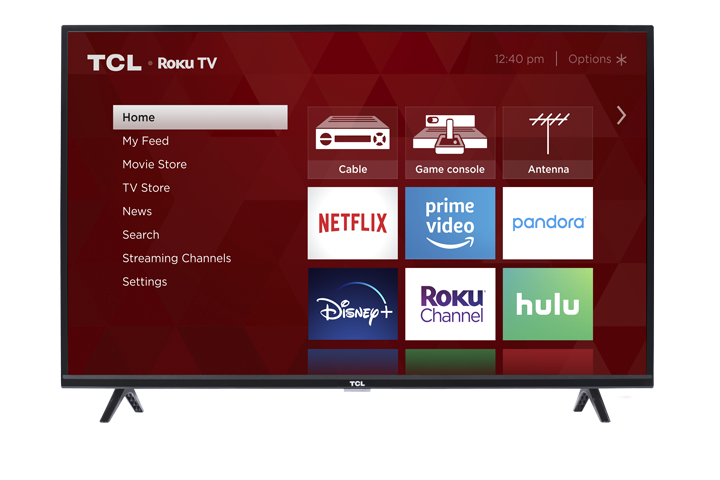
Some TCL Roku TVs allow you to pause and rewind live over-the-air TV when watching channels received through an antenna. This feature is called Live TV Pause.
Live TV Pause is only available when watching live TV from the Antenna TV / Live TV input. It does not work with most streaming apps, HDMI devices, cable boxes, satellite boxes, or the Roku Channel live streaming channels.
What You Need
To use Live TV Pause, you will need:
- A TCL Roku TV
- An over-the-air antenna connected to the TV
- A dedicated USB flash drive
- A USB flash drive with at least 16GB of storage
- The TV must be set up and activated through Roku
Roku states that Live TV Pause requires a USB 2.0-compatible flash drive with at least 16GB of storage. A 16GB drive allows up to 90 minutes of pause and rewind time. Larger drives do not increase the 90-minute limit. The USB drive will be erased during setup and cannot be used to save permanent recordings.
Important Note About the USB Drive
The USB flash drive used for Live TV Pause must be dedicated to this feature. During setup, the TV will format the USB drive, which erases anything currently saved on it.
Live TV Pause does not create permanent recordings. You cannot save shows, transfer recordings, or use the USB drive as a DVR.
How to Set Up Live TV Pause
- Connect your antenna to the TV.
- Scan for antenna channels, if you have not already done so.
- Insert a compatible USB flash drive into the USB port on the TV.
- Go to the Antenna TV or Live TV input.
- Press the Play/Pause button on the Roku remote.
- Follow the on-screen prompts to set up Live TV Pause.
- Allow the TV to format the USB drive when prompted.
Once setup is complete, the TV will be ready to pause and rewind live over-the-air channels.
How to Pause Live TV
While watching an antenna channel:
- Press the Play/Pause button on the Roku remote.
- The live program will pause.
- Press Play/Pause again to resume watching.
You can pause live TV for up to 90 minutes. After 90 minutes, playback will resume automatically.
How to Rewind Live TV
While watching an antenna channel:
- Press the Rewind button on the Roku remote.
- Use the playback controls to move backward.
- Press Play/Pause to resume playback.
Even if you did not manually pause, Roku TV may allow you to rewind up to 90 minutes, or back to the point where you first tuned to that channel.
When the Pause or Rewind Buffer Is Lost
Your paused or rewound spot will be lost if you:
- Change channels
- Leave the Antenna TV / Live TV input
- Turn off the TV
- Remove the USB drive
- Restart the TV
Once the buffer is lost, you cannot return to the paused or rewound point.
What Live TV Pause Can and Cannot Do
Live TV Pause can:
- Pause live antenna TV
- Rewind live antenna TV
- Let you catch up to the live broadcast
- Temporarily store up to 90 minutes of the current channel
Live TV Pause cannot:
- Record shows permanently
- Schedule recordings
- Save content to watch later
- Work with cable or satellite boxes connected through HDMI
- Work with most streaming apps
- Increase pause time beyond 90 minutes by using a larger USB drive
If Live TV Pause Is Not Working
Try the following steps:
- Make sure you are watching from the Antenna TV or Live TV input.
- Confirm the antenna is connected directly to the TV.
- Make sure the USB flash drive is at least 16GB.
- Try a different USB flash drive.
- Make sure the USB drive is fully inserted into the TV.
- Restart the TV.
- Rescan for antenna channels.
- Adjust the antenna if the picture is breaking up or the signal is weak.
Roku recommends trying a different USB flash drive if there are playback issues, since some USB drives may be too slow for live recording and playback.
Additional Notes
Live TV Pause is designed for over-the-air broadcast channels received through an antenna. Availability and menu names may vary by TCL Roku TV model and software version.
If the TV displays a message that Live TV Pause is not available, confirm that you are not watching a streaming channel, HDMI device, cable box, satellite box, or app-based live TV channel.