

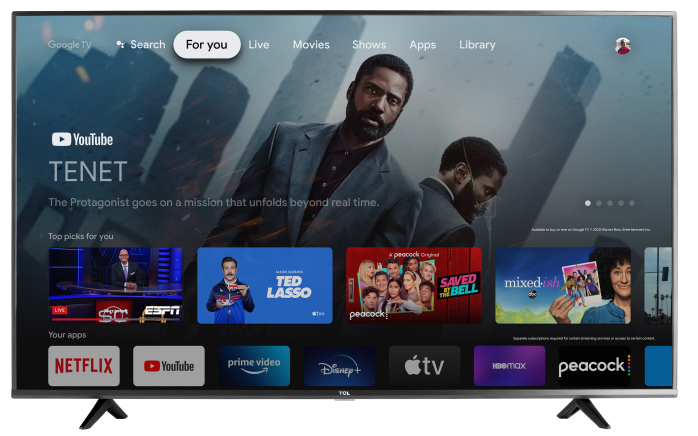

Apps Only mode is a Google TV setting that gives your TV’s Home screen a simpler, cleaner layout. Instead of showing personalized movie and show recommendations, the Home screen mainly focuses on the apps installed on your TV.
This can be helpful if you prefer a less cluttered Home screen, want to reduce personalized recommendations, or have guests using the TV and don’t want your recommendations shown. Google notes that Apps Only mode can hide personalized recommendations, but sponsored content and some popular movie or show teasers may still appear.
What Apps Only mode does
When Apps Only mode is turned on:
- Your Home screen shows your installed apps in a simpler layout.
- Personalized recommendations are hidden from the Google TV Home screen.
- You can still open and use your installed streaming apps.
- Some sponsored content or general entertainment teasers may still appear. (Read Here)
- App-specific recommendations may still appear inside individual apps, such as YouTube or other streaming services.
What changes when Apps Only mode is on
Some Google TV features are not available while Apps Only mode is enabled. For example, you may not be able to use Search or Google Assistant from the Google TV Home screen. You also won’t see your Library directly on the TV Home screen. Purchased movies and shows may still be available through the YouTube app under Library > Purchases.
Why you might want to use Apps Only mode
You may want to turn on Apps Only mode if:
- You want a cleaner, easier-to-navigate Home screen.
- You mostly open apps directly instead of browsing recommendations.
- You want to reduce personalized content on the Home screen.
- You have guests, kids, or family members using the TV.
- You prefer a more traditional “open the app I want” experience.
How to turn on Apps Only mode
- From the Google TV Home screen, select Settings.
- Go to Accounts & Sign In.
- Select your Google profile.
- Select Apps Only Mode.
- Choose Turn On.
- Press the Home button on your remote to return to the Apps Only Home screen.
How to turn off Apps Only mode
- From the Google TV Home screen, select Settings.
- Go to Accounts & Sign In.
- Select your Google profile.
- Select Apps Only Mode.
- Turn Apps Only Mode off.
- Press the Home button on your remote.
Your regular Google TV Home screen, including personalized recommendations and supported Google TV features, should return.
Good to know
Apps Only mode does not remove apps, delete your Google account, change your privacy settings, or prevent apps from showing recommendations inside the apps themselves. It only changes the Google TV Home screen experience for the selected profile.