

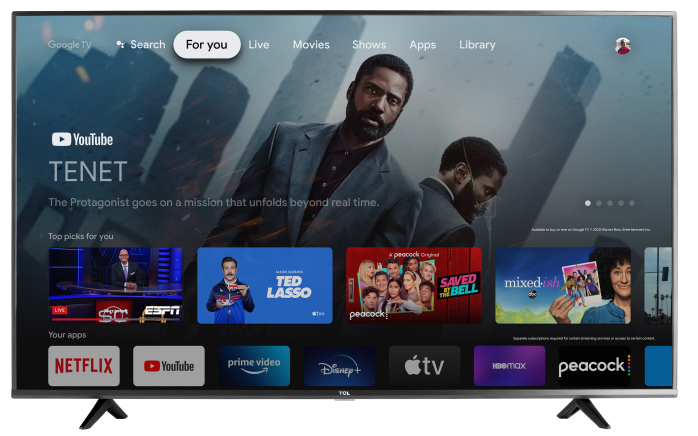

Google TV may show recommended movies, shows, ads, or suggested content on the Home screen. If there is a specific recommendation you do not want to see, you can hide it directly from the Home screen using your remote.
This is helpful if the recommendation is not relevant, if you are not interested in the title, or if you want to clean up the Home screen without turning on Apps Only mode.
Note: Settings and wording may vary by model and OS version.
How to remove a recommended item
- From the Google TV Home screen, highlight the recommended movie, show, or content tile you want to remove.
- Press and hold the OK button on your TCL Google TV remote.
- On some remotes, this may be the Select or center button.
- Wait for the options menu to appear.
- Select About This Add
- Select Don't Show This Add Again
- Select Confirm
If there are multiple recommendations
Repeat the same steps for each item you want to remove:
- Press and hold the OK button on your TCL Google TV remote.
- On some remotes, this may be the Select or center button.
- Wait for the options menu to appear.
- Select About This Add
- Select Don't Show This Add Again
- Select Confirm
Good to know
Hiding a recommendation only removes that specific item from the Home screen. It does not turn off all recommendations permanently.
Google TV may continue to show other recommended content, sponsored content, or suggestions based on apps and services connected to your Google account.
Want fewer recommendations overall?
If you want a more basic Home screen that focuses mostly on apps, you can turn on Apps Only mode.
To turn on Apps Only mode:
- From the Google TV Home screen, select Settings.
- Go to Accounts & Sign In.
- Select your Google profile.
- Select Apps Only Mode.
- Choose Turn On.
To turn Apps Only mode back off, return to the same menu and turn Apps Only Mode off.
Still seeing recommendations?
Some recommendations, ads, or promoted content may still appear because they are part of the Google TV Home screen experience. If the content keeps returning, try hiding the item again or consider using Apps Only mode for a cleaner layout.