

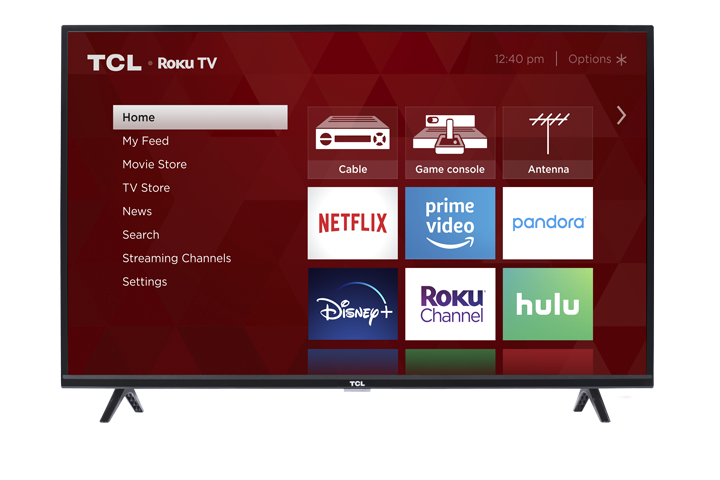

Press Home on your remote.
Select Settings, then press OK.
Select Network, then press OK.
Select About.
Look for Wireless MAC Address (this is your Wi-Fi MAC address).
Tips and troubleshooting
Make sure you’re looking at the right MAC address.
If your TV also has an Ethernet port, you may see both Wireless MAC Address (Wi-Fi) and Ethernet MAC Address (wired). Use the one your network is using.
If “Network” isn’t showing or looks unavailable:
Restart the TV: Settings > System > Power > System restart (or unplug the TV for 30 seconds, then plug it back in).
If you’re using a Wi-Fi network with access control (MAC filtering):
Enter the MAC address exactly as shown (it’s usually 12 characters in pairs like AA:BB:CC:DD:EE:FF). Some routers want it without colons (example: AABBCCDDEEFF).
If a workplace/hotel network is asking for the MAC address:
They typically need the Wireless MAC Address to whitelist your TV so it can connect.
Quick capture tip:
Take a photo of the screen with your phone so you can copy it accurately when entering it into a router or giving it to IT/support.