

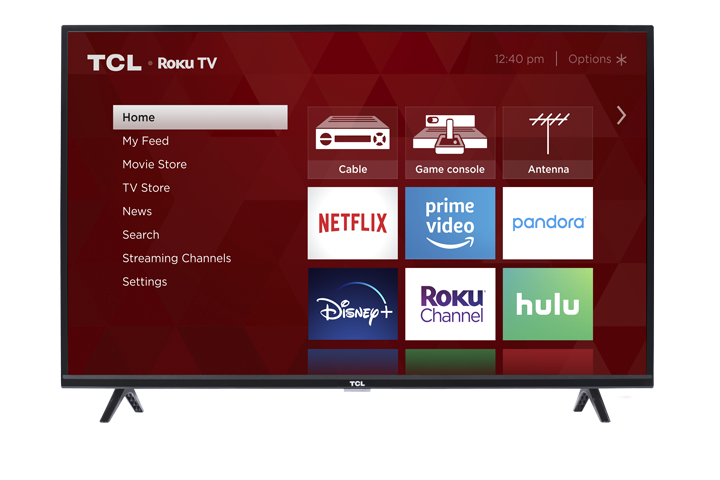

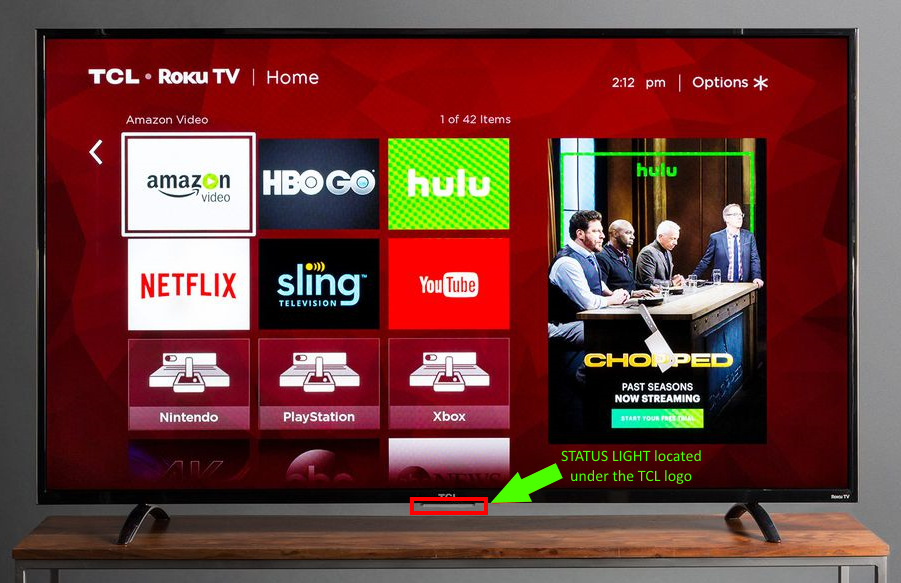
Your TV has a status light on the front panel. It may turn on and off or blink in different ways, depending on the status of the TV. Refer to the table below to know what each indicator means.
| TV Condition | Status Indicator | Meaning |
| On (screen is active) | Off | Screen is communicating that TV is on. |
| Screensaver (screen is active) | Off | Screen is communicating that TV is on. |
| Off (no power) | Off | TV is not connected to power. |
| Off (standby) | On | TV is connected to power and is ready to use. |
| Starting up from off state | Slow pulsing blink until startup completes | TV is doing something. |
| On (receiving update from USB) | Slow pulsing blink until update completes | TV is doing something. |
| Remote control command received | Dims on/off once | TV has received your command. |
| Powering down to standby mode | Slow pulsing blink until the TV reaches standby. | TV is doing something. |
If you want the status light to stay off when the TV is powered off, follow these steps:
Press Home on your remote to open the main screen.
Select Settings.
Select System.
Select Power.
Select Standby LED.
Select Off.
Press OK to confirm.
Tips and troubleshooting
Not all models include this setting.
If you don’t see Standby LED, your TV may not support turning the light off through the menu.
Menu wording may vary slightly.
On some Roku TV models, the option may appear under a similar path such as Settings > System > Power.
Make sure the TV is in “Standby.”
This setting controls the light when the TV is powered off/standby, not while the TV is on.
If the light is still on after changing the setting:
Restart the TV:
Settings > System > Power > System restart
(or unplug the TV for 30 seconds, then plug it back in)
If the light is blinking:
A blinking status light can indicate the TV is receiving a remote command, installing updates, or (in some cases) reporting an error. If it blinks repeatedly and the TV isn’t responding normally, try the restart steps above.