

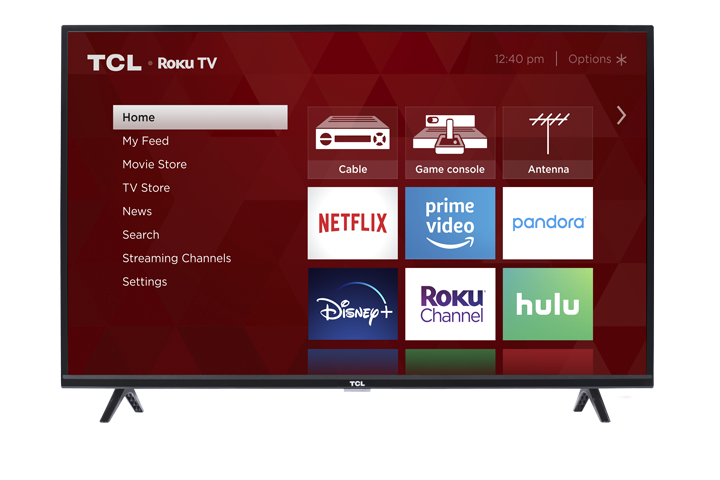
Connecting your TCL Roku TV to the internet lets you stream shows and movies, use apps, and receive software updates. You can connect using Wi-Fi, an Ethernet cable if your TV has an Ethernet port, or a mobile hotspot.
Before you begin, have your Wi-Fi name and password ready. If you’re using a hotspot, check your phone’s hotspot name, password, and available data. Menu wording can vary slightly by TV model or Roku software version.
Before You Connect
- Keep your Wi-Fi name and password handy. Check the spelling and capitalization; passwords are case-sensitive.
- Place your TV where it can get a good signal. Thick walls, metal objects, and a long distance from the router can weaken Wi-Fi.
- Check that your internet is working. Try opening a website on a phone or computer connected to the same network.
- Know where your router is and how to restart it. A restart can resolve temporary connection problems.
- For Ethernet, check for a port labeled “LAN” or “Ethernet” on the back or side of your TV. Not all TV models include one.
- For a hotspot, review your mobile plan’s data limits. Streaming and TV updates can use a significant amount of data.
See the video below for helpful Wi-Fi connecting tips:
Connect to Wi-Fi
- Press Home on your Roku remote.
This opens the TV’s main menu. - Go to Settings > Network > Set up connection > Wireless.
This tells the TV to search for wireless networks. - Select your Wi-Fi network. If you don’t see it, select Scan again.
Scanning refreshes the list of networks the TV can detect. - Enter your Wi-Fi password and select Connect.
The password lets the TV join your network. It is case-sensitive. - Follow any remaining on-screen instructions. To check your connection, go to Settings > Network > About.
The network information can confirm whether the TV connected successfully.
Troubleshoot a Wi-Fi Connection
Try these steps in order:
-
Check that other devices can use the same Wi-Fi network. If none can connect, the issue may be with the router or internet service.
This helps determine whether the problem is limited to the TV. -
Confirm that you selected the right network and entered the password correctly. Re-enter the password carefully, checking upper- and lowercase letters.
A small typing error can prevent the TV from joining the network. -
Move the TV or router closer together, if possible. Keep the router in an open location, away from cabinets and large obstructions.
A stronger signal can improve connection reliability. -
Restart the router. Unplug it from power, wait about 30 seconds, plug it back in, and wait for its internet connection to return.
This refreshes the router and can clear temporary network problems. -
Restart the TV. Go to Settings > System > Power > System restart. If you don’t see Power, look for System restart under Settings > System.
Restarting the TV can clear a temporary software or network issue. -
Try the other Wi-Fi band if your router offers separate 2.4 GHz and 5 GHz networks. Select the other network name from the list.
One band may provide a stronger or more reliable signal in your location. Available bands depend on your router and TV model. -
Try connecting to a mobile hotspot. If the TV connects to the hotspot but not your home Wi-Fi, the home router or its settings may need attention.
This helps narrow down where the connection problem is occurring. -
If the network name still doesn’t appear, contact your internet provider or router manufacturer. Ask whether the network is visible to other devices and whether any router settings were recently changed.
They can help check network settings that may be preventing the TV from finding or joining Wi-Fi.
Connect with an Ethernet Cable
A wired connection may provide a steady connection. It is available only on TV models with a built-in Ethernet port.
- Check the back or side of the TV for a port labeled LAN or Ethernet.
This confirms that your TV supports a direct wired connection. - Connect one end of an Ethernet cable to the TV and the other end to an open port on your router.
The cable links the TV directly to your home network. - Press Home on your Roku remote and go to Settings > Network > Set up connection > Wired.
This selects the wired network for the TV. - Follow the on-screen instructions. To check the connection, go to Settings > Network > About.
The network information can confirm whether the TV is online.
Troubleshoot an Ethernet Connection
-
Make sure the cable is firmly connected at both ends.
A loose connection can keep the TV from detecting the network. -
Check that the router is powered on and connected to the internet. Try another device on the same router.
This confirms that the router and internet service are working. -
Try another Ethernet cable or router port, if available.
This can help identify a damaged cable or inactive port. -
Restart the router and TV. After restarting the router, wait for its internet connection to return before checking the TV.
Restarting refreshes both sides of the connection. -
Confirm that your TV has an Ethernet port. If it does not, connect using Wi-Fi or a mobile hotspot instead.
Ethernet setup requires a built-in port on the TV.
Connect to a Mobile Hotspot
A mobile hotspot shares your phone’s cellular internet connection with the TV. Data use may be higher than expected, especially during streaming or software updates.
- Turn on the hotspot in your phone’s settings. Keep the hotspot settings screen available so you can check its network name and password.
The TV needs the hotspot to be active and visible before it can connect. - On the TV, press Home and go to Settings > Network > Set up connection > Wireless.
This opens the list of available wireless networks. - Select your hotspot’s network name. If it isn’t listed, select Scan again.
Scanning refreshes the list of networks the TV can detect. - Enter the hotspot password and select Connect.
The password allows the TV to join your phone’s hotspot. - Follow any remaining on-screen instructions.
This completes the network setup.
Troubleshoot a Mobile Hotspot Connection
-
Confirm that the hotspot is on and that your phone has cellular service.
The hotspot shares your phone’s mobile data connection, so the phone needs service. -
Check that your mobile plan allows hotspot use and has data available. Contact your wireless provider if you’re unsure.
Some plans limit hotspot use or apply separate data limits. -
Verify the hotspot name and password in your phone’s settings. If you’ve changed either, select the current network name on the TV and enter the updated password.
The TV must use the hotspot’s current sign-in details. -
Keep the phone near the TV and prevent it from turning off the hotspot. Some phones disable the hotspot automatically when it isn’t in use.
The TV needs a steady hotspot signal while connecting and streaming. -
Turn the hotspot off and back on, then scan for networks again on the TV.
This refreshes the hotspot and the TV’s network list. -
Check your phone’s hotspot compatibility settings. If your phone offers a compatibility mode or a choice of Wi-Fi band, try compatibility mode or another available band. Settings vary by phone.
Some combinations of phone and TV may connect more reliably with different hotspot settings.
Check the TV’s Network Status
If the TV is connected but streaming apps still aren’t working:
- Go to Settings > Network > About and check the connection information.
This helps confirm whether the TV has joined the network. - If available, select Check connection under Settings > Network.
The test can help identify whether the TV can reach the internet. - Try another app or another device on the same network.
If only one app has a problem, the issue may be with that app rather than the TV’s internet connection. - If other devices also have trouble, restart your router or contact your internet provider.
The provider can check for an outage or a network issue.
Helpful note: Hotspots use mobile data, and streaming or downloading updates can use a lot. Check your mobile plan before using a hotspot for extended viewing.