

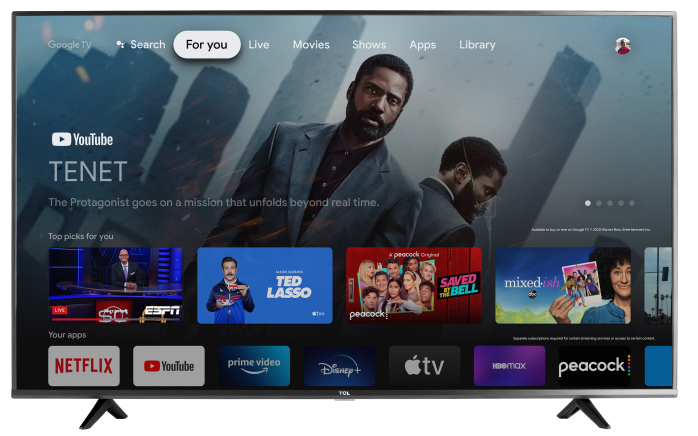

How to Use the Sleep Timer on Your TCL TV
The Sleep Timer automatically turns your TV off after a set amount of time. This is helpful if you like to fall asleep with the TV on, or if you want to save power.
Select your TV type below and follow the steps.
TCL Google TV – Using the Sleep Timer
Step 1: Open the Quick Settings menu
- Turn on your TCL Google TV.
- On your remote, press the Settings (gear) button.
- If your remote doesn’t have a gear icon, press the Home button and scroll to find Settings (gear icon) at the top right.
Step 2: Find the Sleep Timer
- Go to System (or System > Power on some models).
- Look for Sleep timer or Energy / Power settings.
- Select Sleep timer.
Step 3: Choose a Time
- Pick how long you want the TV to stay on (for example, 15 minutes, 30 minutes, 60 minutes, etc.).
- Confirm your selection.
- The TV will automatically turn off after that amount of time.
To turn the Sleep Timer off:
Go back to Settings > System > Sleep timer and select Off or Disable.
Tips & Common Questions
Will the Sleep Timer stop my streaming show?
Yes. When the Sleep Timer runs out, your TV will power off, which will stop any video or audio that’s playing.
Can I use the Sleep Timer every night?
Yes. Just set the time each night before bed, or adjust it whenever needed.
My TV didn’t turn off at the right time. What should I do?
Make sure the Sleep Timer is set on the TV itself (not just in a cable box or streaming device).
Double-check the timer setting and confirm it isn’t set to Off.
Power cycle the TV (turn it off and unplug it for 1–2 minutes, then plug it back in) and set the Sleep Timer again.
If you still have issues using the Sleep Timer on your TCL TV, please contact TCL Support with your TV model number and operating system (Google TV, Roku TV, or Fire TV) for additional help.