

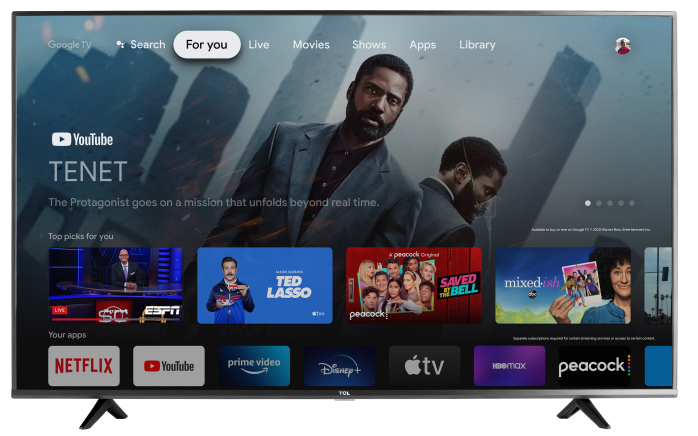

Connecting your TCL TV to the internet lets you stream apps, download updates, use voice features, and access the Google Play Store. You can connect using Wi-Fi (wireless) or an Ethernet cable (wired).
Before you start
Have the following ready:
- Your Wi-Fi network name (SSID) and password (for wireless connection)
- Your router/modem powered on and working
- If using wired: an Ethernet cable long enough to reach your router
Tip: If your Wi-Fi password includes capital letters or symbols, enter it exactly—passwords are case-sensitive.
Option 1: Connect using Wi-Fi
- Press the Home button on your remote.
- Select Settings (gear icon) in the top-right.
- Go to Network & Internet.
- Turn Wi-Fi On (if it isn’t already).
- Select your Wi-Fi network name from the list.
- Enter your Wi-Fi password, then select Connect.
- Once connected, your TV will show Connected under your network name.
If you don’t see your network:
- Scroll down and select Scan again (if available), or wait a moment for the list to refresh.
- Move the TV/router closer temporarily to improve signal strength.
Option 2: Connect using an Ethernet cable (wired)
- Plug one end of an Ethernet cable into your router/modem.
- Plug the other end into the TV’s LAN/Ethernet port.
- Press Home on the remote.
- Go to Settings > Network & Internet.
- Confirm Ethernet shows as Connected.
Tip: Wired connections are often more stable than Wi-Fi, especially for 4K streaming.
Confirm your connection
After connecting:
- Open a streaming app (like YouTube) and play a video, or
- Go to Settings > Network & Internet and confirm the status shows Connected.
Troubleshooting if your TV won’t connect
Check the basics
- Restart your router/modem (unplug for 30 seconds, then plug back in).
- Restart the TV: Settings > System > Restart (menu names may vary).
- Make sure you’re selecting the correct Wi-Fi network and entering the correct password.
If Wi-Fi connects but the internet doesn’t work
- Try connecting another device (phone/tablet) to the same Wi-Fi to confirm the internet is working.
Forget the network and reconnect:
- Settings > Network & Internet > (your network) > Forget
- Reconnect and re-enter the password.
If the network requires a sign-in page
Some apartments, dorms, and hotels use a “captive portal” sign-in page. These networks may not work well with TVs. If possible, use:
- A home router (standard Wi-Fi), or
- An Ethernet connection, or
- A mobile hotspot for testing
Improve Wi-Fi reliability
If your router offers both 2.4 GHz and 5 GHz networks, try the other one:
- 2.4 GHz = better range
- 5 GHz = faster speeds (shorter range)
- Avoid placing the router behind thick walls, metal cabinets, or near other electronics that can cause interference.