

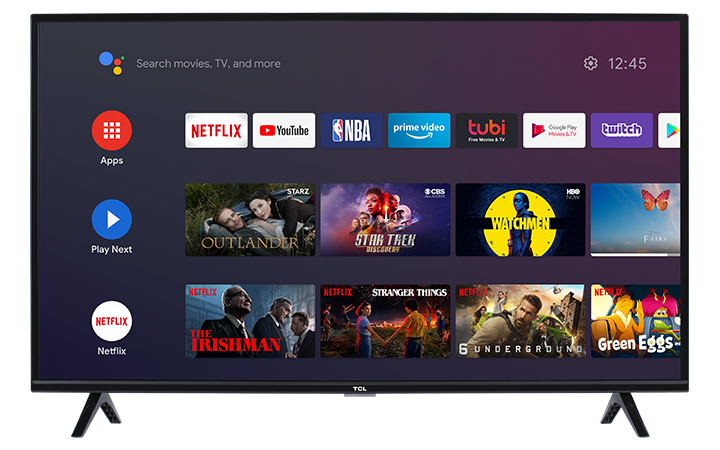
You can download and install apps on your TCL Android TV from the Google Play Store. Use the steps below to browse, search, install, open, or remove apps.
Note: Menu names, available apps, and Google Play Store options may vary by TV model, software version, region, and app availability.
Download an App
- From the Android TV Home screen, go to Apps.
- Select Get more apps.
This will open the Google Play Store. - Browse or search for the app you want to install.
Browse for Apps
To browse available apps:
- Use the Up and Down buttons on the remote to view different categories.
- When you find a category you are interested in, move to the right to view available options.
- Select the app you want.
Search for an App
To search for a specific app:
- Go to the Search icon at the top of the screen.
- Use the on-screen keyboard to type the name of the app.
- Select the app from the search results.
Install the App
After selecting the app:
- For a free app, select Install.
- For a paid app, follow the on-screen instructions to complete the purchase.
Once the download is complete, you will usually see the option to Open or Uninstall.
Note: Some apps are free to download but may require a paid subscription, account sign-in, rental, purchase, or in-app payment to access content. App availability, pricing, and subscription requirements are managed by the app provider and may vary by region.
Open the App
To launch the app right away:
- Select Open after the installation finishes.
You can also find the app later from the Apps section on the Android TV Home screen.
Uninstall an App
If you no longer want the app:
- Select the app.
- Choose Uninstall.
- Confirm the removal if prompted.
Where Newly Installed Apps Appear
Newly installed apps usually appear at the bottom of the Apps row or Apps section by default.
You may need to scroll through your apps to find the newly installed app.
If You Cannot Find or Install an App
If an app does not appear in the Google Play Store, it may not be available for your TV model, Android TV version, region, or device type.
Try the following:
- Make sure the TV is connected to the internet.
- Check that you are signed in with a Google account.
- Restart the TV.
- Check for a system update.
- Search for the app again in the Google Play Store.
To check for a system update, go to:
Settings > Device Preferences > About > System update
Menu names may vary by model and software version.
Helpful Tips
- Some apps require a paid subscription or account sign-in.
- Paid apps and in-app purchases are managed through your Google account.
- App availability can vary by country, region, TV model, and software version.
- Newly installed apps may appear at the end of the Apps row.