

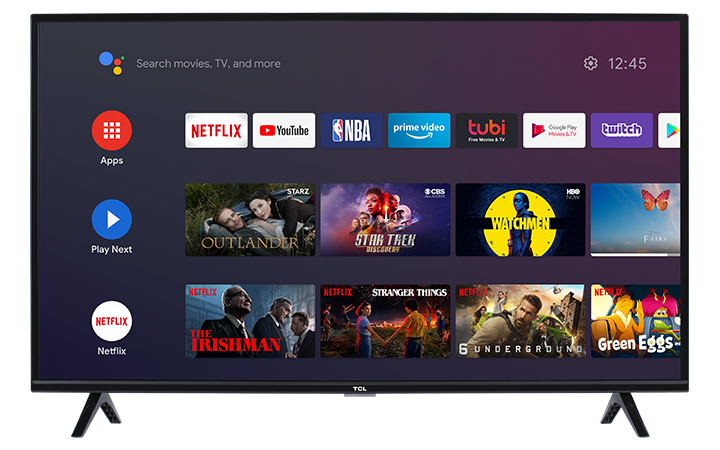
Set up and activate your TCL Android TV
Setting up your TCL Android TV only takes a few minutes. Before you begin, make sure you have everything you need, then follow the steps below to power on and activate your TV.
Before you begin
Make sure you have:
- Access to a wireless internet connection
Tip: Have your Wi-Fi network name (SSID) and password ready. - A Google email account (Gmail)
If you don’t have one, you’ll need to create a Google Account before you can sign in.
Step 1: Power on your TCL Android TV
- Plug your TV into a power outlet.
- Press Power on your TCL TV remote.
- When you see the Welcome screen, select your preferred language.
Step 2: Activate your TCL Android TV
You can set up your TV in one of three ways. Choose the option that works best for you.
Option A: Quick Start using an Android phone (fastest)
When your TV asks: “Quickly set up your TV with your Android phone?” select Continue (or Yes).
On your Android phone, open the Google app (usually pre-installed).
Type or say: “set up my device”.
Follow the prompts on your phone until a code appears.
Confirm the code matches the one shown on your TV.
On your phone, tap your TV name when it appears.
Follow the on-screen steps on your TV to finish setup.
Tip: This method automatically connects your TV to the same Wi-Fi network as your phone and signs into your Google Account.
Troubleshooting tips:
Make sure Bluetooth is enabled on your phone.
Keep your phone close to the TV during setup.
If your phone doesn’t find the TV, restart the TV and try again.
Option B: Set up using your TCL TV remote
When your TV asks: “Quickly set up your TV with your Android phone?” select Skip.
Choose your Wi-Fi network, then enter your password to connect.
If prompted, allow time for the TV to download and install updates.
Select Sign in.
Choose Use your remote.
Sign in to your Google Account and follow the on-screen instructions to complete setup.
Troubleshooting tips:
Double-check your Wi-Fi password (it’s case-sensitive).
If the Wi-Fi connection fails, restart your router and try again.
If the TV gets stuck during updates, restart the TV and continue setup.
Option C: Set up using a smartphone (iPhone or non-Android) or a computer
When your TV asks: “Quickly set up your TV with your Android phone?” select Skip.
Connect your TV to the same Wi-Fi network as your phone or computer.
If prompted, allow time for the TV to update.
On your TV, select Sign in.
Choose Use your phone or computer.
Sign in to your Google Account using the method shown on the TV screen.
Follow the on-screen instructions to finish setup.
Troubleshooting tips:
Make sure your phone/computer is on the same Wi-Fi network as the TV.
If the sign-in page won’t load, restart the TV and try again.
If you’re using a VPN on your phone/computer, temporarily turn it off during setup.
Helpful reminders
- Setup steps may vary slightly depending on your TV model and software version.
- If you can’t sign in or connect to Wi-Fi, try a TV restart and run setup again.