

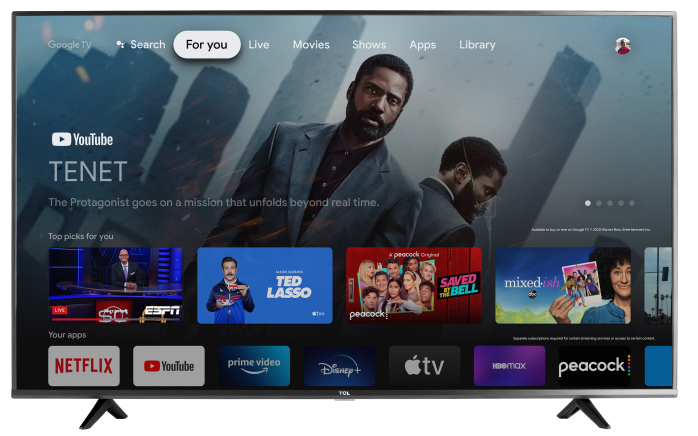

This article provides an overview of the TCL Google TV settings customers may find listed in their TV’s user manual. These settings allow customers to adjust picture, sound, network connection, apps, privacy options, system features, remotes, accessories, and more.
The settings listed in this article are based on the TCL X11L Series Google TV user manual.
Note: Settings, menu names, and available features may vary by model, region, input source, app, picture mode, and software version.
Customers with TCL Q, QM, X11, and RM series Google TVs can also access a built-in user manual directly on the TV. To find it, go to the Apps section from the TV’s Home screen and open the user manual app, if available.
To open the Settings menu:
- Press the Home button on your remote.
- Select the Settings icon.
- Select All settings.
- Use the directional buttons and OK to select a menu or setting.
General Settings
Channels & Inputs
Use Channels & Inputs to manage live TV channels and connected devices.
Common options may include:
-
Channel Scan
Searches for available antenna channels automatically or manually. -
Country/Region
Sets the country or region used to arrange available channels. -
Scan Automatically
Scans for channels based on the selected tuner mode and channel type. -
Manually Scan
Allows channels to be scanned manually using details such as channel number or frequency. -
Edit Channels
Lets you adjust or organize the channel list after channels have been scanned. -
Clear Channel List
Resets the saved channel list. -
EPG
Opens the Electronic Program Guide for supported live TV channels. -
Channel Diagnostics
Helps test picture, sound, and signal information for TV channels. -
Authentication for TV Service
Checks whether a selected TV service is trusted. -
External Inputs
Displays connected inputs and standby inputs. You may be able to rename inputs or choose whether they appear in the input list. -
HDMI CEC
Allows the TV and compatible HDMI-connected devices to control each other. -
HDMI Control
Enables control of compatible HDMI-connected devices. -
eARC
Allows high-quality audio output through the HDMI ARC/eARC port when connected to a compatible audio device. -
Power on the TV in Sync
Allows the TV to power on when a compatible HDMI-connected device is turned on. -
Device Standby in Sync
Allows compatible HDMI-connected devices to enter standby when the TV enters standby. -
Auto Switch
Helps save energy by switching connected HDMI devices to standby when not in use.
Display & Sound
Use Display & Sound to adjust picture, screen, and audio settings. Available options may vary depending on the content, input, picture mode, and TV model.
Picture Settings
-
Picture Mode
Changes the overall picture appearance based on what you are watching. Options may include: -
Intelligent
Automatically adjusts the picture based on the content and viewing environment. -
Vivid
Boosts color and contrast for a brighter, more enhanced picture. -
Standard
Balances picture quality and energy use for everyday viewing. -
Sports
Improves motion for sports and fast-moving content. -
FILMMAKER MODE
Displays supported movies and shows closer to the creator’s intended picture style. -
Movie
Optimizes the picture for watching movies.
Brightness Settings
-
Brightness
Adjusts the overall screen brightness. -
Contrast
Adjusts the white level of the picture. -
Black Level
Adjusts how dark black areas appear. -
Gamma
Adjusts mid-range brightness. Lower settings may make the picture appear brighter. -
Automatic HDR Conversion
Analyzes video scenes and adjusts dynamic range to improve contrast. -
Dynamic Tone Mapping
Balances brightness and detail in HDR content. -
Dynamic Contrast
Automatically adjusts contrast based on the picture. -
Black Stretch
Enhances shadow contrast. -
Local Contrast
Adjusts backlight and signal contrast by area to improve image depth. -
Peak Luminance
Adjusts maximum brightness in local dimming areas. -
Micro Contrast
Dynamically adjusts contrast in different parts of the image. -
Dynamic Brightness
Automatically adjusts backlight based on the picture.
Color Settings
-
Color Saturation
Adjusts color intensity. -
Tint
Adjusts color tone. -
Dynamic Color
Automatically enhances picture color. -
Adaptive Color Temperature
Adjusts screen color temperature based on room lighting. -
Color Temperature
Changes the picture between warmer or cooler color tones. -
White Balance
Fine-tunes white color levels. -
Color Space
Adjusts the range of colors the TV displays. - Clarity Settings
-
Sharpness
Adjusts picture detail. -
Digital Noise Reduction
Reduces compression noise in the image. -
Noise Reduction
Reduces random picture noise. -
Gradation Clear
Helps reduce banding or noise in color gradients. -
Super Resolution
Enhances video detail using real-time image processing. -
Precision Detail
A Dolby Vision feature that helps reveal more detail in bright and dark areas.
Motion Settings
-
Motion Clarity
Adds motion compensation to help reduce blur and judder. -
LED Motion Clear
Controls the LED backlight to help fast-moving images appear clearer. -
Dynamic Acceleration
Increases the screen refresh rate when supported. -
Game Direct Sync
Helps reduce input lag for certain gaming signals.
Additional Picture Options
-
Restore Defaults
Resets custom picture settings for the current picture mode. -
Apply All Picture Settings
Applies picture settings to all inputs or only the current input. -
Eye Health Protection
Includes features designed to improve viewing comfort. -
Adaptive Brightness
Adjusts brightness based on room lighting. -
Blue Light Filter
Reduces blue light in the image. -
Automatic Content Recognition
When enabled, the TV may switch to a matching picture mode when supported FILMMAKER MODE or IMAX content is detected.
Screen Settings
-
Auto Detect
Automatically adjusts the viewable screen area based on the signal. -
Aspect Ratio
Changes the picture size and screen shape. -
Overscan
Enlarges the picture, which may cause the outer edges to be cut off.
Sound Settings
-
Sound Mode
Changes the audio profile based on the content. Options may include: -
Movie
Optimizes surround sound for movies. -
Speech
Enhances voices and dialogue clarity. -
Music
Improves music detail and layering. -
Games
Optimizes surround sound for gaming. -
Night
Reduces loud sound changes for quieter nighttime listening. -
Sports
Enhances spacious sound for sports content. -
Custom
Allows personal sound adjustments. -
Sound Mode Customization
Lets you adjust sound effects when using a custom sound mode. -
Beosonic
Allows personalized sound adjustment on supported models. -
Equalizer
Adjusts sound by frequency range. -
Loudness
Boosts low and high frequencies at lower volume levels. -
Treble
Adjusts high-frequency sound. -
Bass
Adjusts low-frequency sound. -
Center Speaker
Adjusts center speaker volume to improve dialogue clarity. -
Surround Speaker
Adjusts surround speaker volume for ambient sound effects.
Other Sound Settings
-
TV Placement
Optimizes sound based on where the TV is placed. -
Dolby Atmos
Enables supported surround sound effects. -
DTS DRC
Reduces background noise in DTS audio to help make sound clearer. -
Audio Only Mode
Turns off the TV screen while audio continues to play.
Audio Output Settings
Audio Output
Selects where TV audio plays.
Common options may include:
-
Auto/Internal Speaker
The TV automatically selects the highest priority audio device. -
Internal Speaker
Plays sound through the TV speakers. -
HDMI ARC/eARC
Sends audio to a compatible device connected through HDMI ARC/eARC. -
Bluetooth
Sends audio to a paired Bluetooth audio device. -
Optical
Sends audio to a device connected through the optical audio port. -
Internal Speaker + Subwoofer
Plays audio through the TV speakers and a compatible external subwoofer connection when supported. -
Digital Audio Out
Selects the audio format used by a connected HDMI or optical audio system. -
Speaker Management
Manages compatible connected speakers. -
Audio Delay
Adjusts audio timing to help sync sound and picture when using TV speakers. -
Digital Audio Out Delay
Adjusts timing for audio sent through optical, ARC, or external audio devices.
Network & Internet
Use Network & Internet to connect the TV to Wi-Fi or a wired Ethernet connection. This menu may also show the current network status.
Common uses include:
-
Wi-Fi Setup
Connects the TV to a wireless network. -
Wired Network Setup
Connects the TV to the internet using an Ethernet cable. -
Network Status
Shows whether the TV is connected to the internet.
A reliable broadband internet connection is required to use Google TV smart features and streaming services.
Accounts & Sign In
Use Accounts & Sign In to sign in with a Google Account. Signing in allows access to Google TV features such as app downloads, personalized recommendations, and other Google services.
Some smart features may require both a Google Account and a TCL account.
Privacy
Use Privacy to manage privacy-related settings on the TV. Options may include app permissions, usage settings, and other privacy controls depending on model and software version.
Apps
Use Apps to view and manage installed apps.
Common options may include:
-
Recently Opened Apps
Shows apps that were recently used. -
All Installed Apps
Displays apps installed on the TV. -
System Apps
Displays built-in apps used by the TV system. -
App Permissions
Allows you to manage what apps can access, such as location, microphone, or other features. -
Special App Access
Allows certain app access settings, such as usage access, notification access, or energy optimization.
System
Use System to manage TV-wide settings.
Common System Options
-
Ambient Screensaver
Sets up Google TV Ambient Mode, which may show weather, time, Google Photos, art, or other screensaver content. -
Power & Energy
Adjusts screen saver options, power-on behavior, energy saver settings, sleep timer, and standby mode. -
About
Shows TV information such as system update, device name, status, model, software version, product information, legal information, auto update, and reset options. -
Date & Time
Sets date, time, time zone, automatic time sync, and 24-hour format. Network connection may be required for automatic time settings. -
Language
Changes the TV menu language. This may also affect voice recognition language. -
Keyboard
Manages the on-screen keyboard, keyboard language, keyboard version, terms, privacy policy, open-source licenses, usage statistics, and installed keyboards. -
Storage
Shows memory usage and allows management of app data, cache, defaults, permissions, and app behavior. -
Cast
Allows other devices on the same Wi-Fi network to control cast media on the TV. -
System Sounds
Adjusts or turns off TV system sounds. -
AirPlay and HomeKit Settings
Allows Apple AirPlay sharing and Apple Home control when supported. -
TCL Account & Sign In
Allows a TCL account to be added or managed. -
Parental Controls
Restricts certain programs based on rating or age limits. A four-digit password is required. -
Game Master
Enables supported gaming features such as VRR, which can help reduce screen tearing and provide smoother gameplay. -
Interactive Service
Manages interactive service options when available. -
Emergency Alert
Manages emergency alert information provided in TV programming. -
Advanced Settings
May include options such as standby LED indicator behavior and the TV’s usage environment. -
Restart
Restarts the TV.
Accessibility
Use Accessibility to adjust features that make the TV easier to see, hear, and use.
Common options may include:
-
Captions
Turns captions on or adjusts caption settings. -
High Contrast Text
Makes on-screen text easier to read when supported. -
Text to Speech
Reads supported on-screen text aloud. -
Accessibility Shortcut
Sets a shortcut for quickly opening accessibility features. -
TalkBack
Provides spoken feedback for supported menus and navigation. -
Switch Access
Allows supported external switches or controls to navigate the TV.
Remotes & Accessories
Use Remotes & Accessories to pair and manage Bluetooth devices.
Common options may include:
-
Pair Accessory
Searches for nearby Bluetooth accessories. -
Bluetooth Device Management
Pairs, disconnects, or manages connected Bluetooth devices. -
Make TV Visible
Allows nearby Bluetooth devices to find the TV for pairing.
Help & Feedback
Use Help & Feedback to access Google TV Help and support information.
Built-In User Manual and Product Downloads
Some TCL Google TV models include a built-in user manual that can be opened directly on the TV. On TCL Q, QM, X11, and RM series Google TVs, customers can find the built-in user manual in the Apps section on the TV’s Home screen.
For additional model-specific information, customers can also visit the Product Downloads section on TCL’s support website. Select TCL models include downloadable user manuals, but manuals may not be available for every model.