

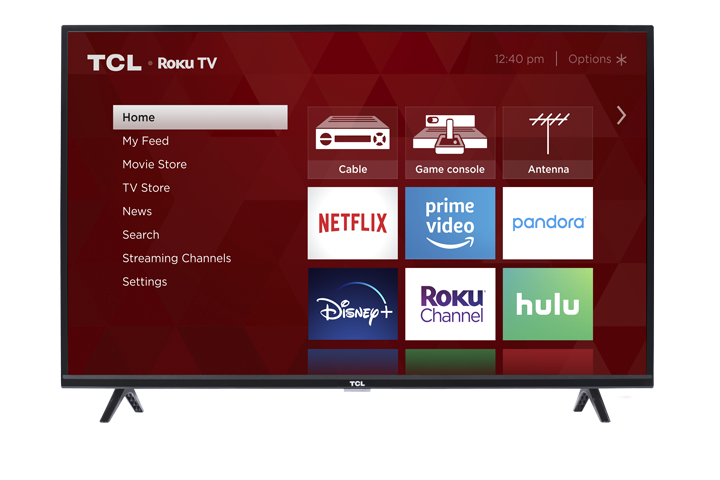

If an HDMI input such as HDMI 1, HDMI 2, or HDMI 3 appears to be missing, the input may have moved, been hidden, or not yet been set up. Follow these steps in order.
Note: Menu names and locations may vary slightly depending on the TV model and Roku software version.
1. Look in the Apps Section
Press the Home button and scroll down to Apps. Look through the app and input tiles for HDMI 1, HDMI 2, or HDMI 3.
Why this helps: On newer Roku Home Screen layouts, HDMI inputs may appear in the Apps section instead of near the top of the screen.
If you find the input, highlight it and press the Star button. Select Move app or Move to top, if available, to make it easier to find.
2. Add the HDMI Input to the Home Screen
- Press Home on the Roku remote.
- Go to Settings.
- Select TV inputs or Inputs.
- Select the missing HDMI port.
- Select Set up input or Show input.
Return to the Home screen or Apps section and check for the HDMI tile.
Why this helps: An HDMI input can be hidden from the Home screen even though the physical HDMI port is still available.
3. Confirm the Correct HDMI Port
Look at the label beside the HDMI port where the device is connected. Make sure you select the matching input on the TV.
For example, a device connected to HDMI 2 must be viewed using the HDMI 2 tile.
Why this helps: Selecting a different HDMI number can make it seem like the correct input is missing or not working.
4. Check the Connected Device and HDMI Cable
If the HDMI tile appears but displays No signal:
- Make sure the connected device is turned on.
- Disconnect and firmly reconnect both ends of the HDMI cable.
- Try another HDMI cable, if available.
- Connect the device directly to the TV instead of through a soundbar, receiver, or adapter.
- Try the device on another HDMI port.
Why this helps: These checks determine whether the issue is caused by the device, cable, other connected equipment, or a specific HDMI port.
5. Restart the TV
Go to:
Settings > System > Power > System restart
If Power is not listed, select System restart directly from the System menu.
Why this helps: Restarting refreshes the Roku interface and input settings without deleting apps, accounts, or personal settings.
6. Check for a Software Update
Go to:
Settings > System > Software update or System update > Check now
Install any available update and check the HDMI inputs again.
Why this helps: Software updates may correct Home Screen, input-detection, and menu-display issues.
If the HDMI Input Is Still Missing
Check Settings > TV inputs or Inputs again. If the physical HDMI port is not listed there after restarting and updating the TV, contact TCL Support for additional assistance.
Avoid performing a factory reset unless instructed by TCL Support. A factory reset removes installed apps, accounts, network information, and customized settings.
Final Check
If the HDMI tile returns but the connected device still has no picture or sound, the problem is more likely related to the HDMI cable, connected device, or signal. If the physical HDMI port remains absent from the TV input settings, have the TV’s model number and serial number ready when contacting TCL Support.