

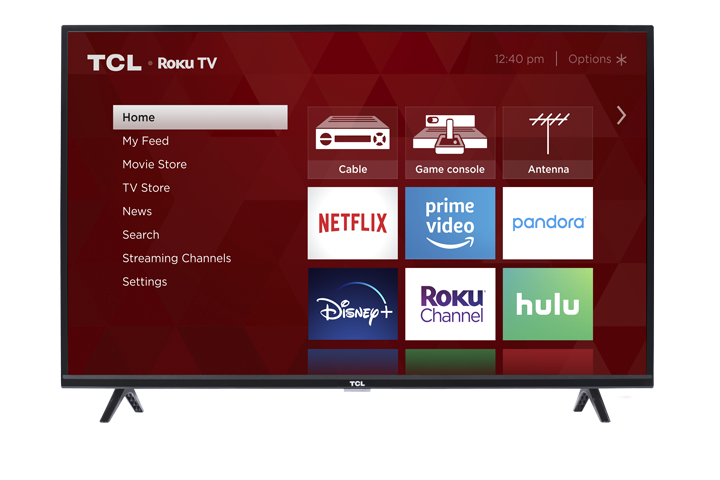

Apple AirPlay and HomeKit are now available on select TCL Roku TVs.
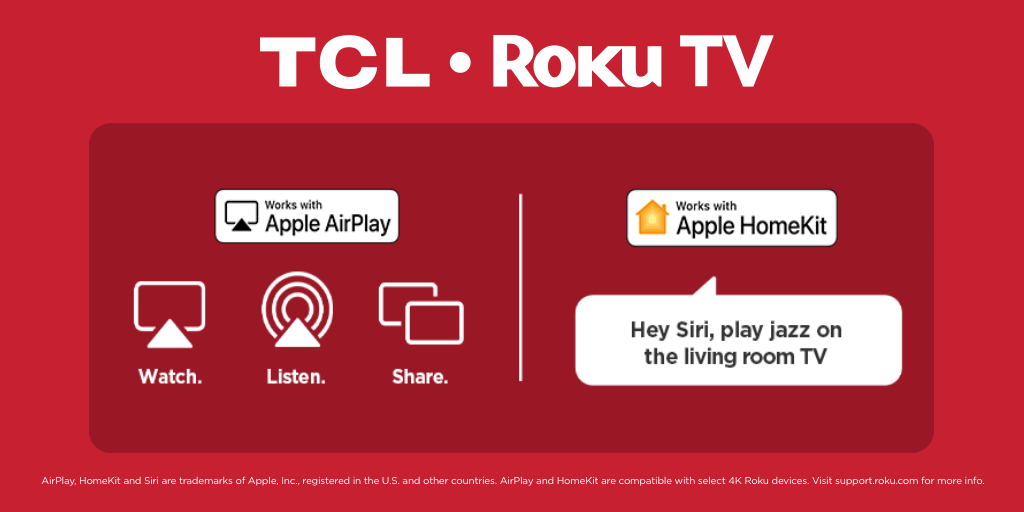
AirPlay allows you stream TV shows, movies, videos and photos directly from your Apple devices to your Roku TVs. You can also share music to your Roku TV, as well as to any AirPlay 2-enabled speakers. You can even mirror what's exactly on the screen of your Apple device, as well as use your Roku TV as a second screen on your Mac.
And with HomeKit support, Roku TVs can easily be controlled with Siri or the Home app on your Apple device. Visit the Apple support website to learn more.
- Control your Roku TV with your voice using Siri on your iPhone, iPad, or Mac
- Play music, control your AirPlay sessions, and more from anywhere in the house
- Ask Siri to turn your Roku TV on and off, adjust the volume, and more
- Setup in just a few easy steps with the Apple Home app
Required TV Settings
Your TCL Roku TV may not stay connected to your wireless network when powered off. Enable the Fast TV Start feature on your unit to ensure your TV maintains network connection and allow AirPlay and HomeKit to connect your unit when powered off.
- Using your TCL Roku TV remote, press the Home button
- Navigate to and select the Settings option
- Select System, then Power
- Select Fast TV start
- Highlight Enable 'Fast TV Start'
How to use AirPlay on you TCL Roku TV?
Click the tab of the type of content you would like to share.
Photos
- Open the Photos app on your iPhone or iPad
- Select the photo you would like to share
- Tap the Share icon on the bottom left hand corner
- Select AirPlay
- Select the TCL Roku TV from the AirPlay Menu
Videos
- Open a video app on your iPhone or iPad
- Select the video you would like to share
- Tap the AirPlay video icon
- Select AirPlay
- Select the TCL Roku TV from the AirPlay Menu
Note: Once playback begins, you can pause, fast forward, and rewind from your iPhone, iPad, or Mac, or you can use your TCL Roku TV remote. When you want to stop streaming with AirPlay, you can press the Home button on your TCL Roku TV remote.
You can also use Screen Mirroring from Control Center on your iPhone or iPad to playback any video that's being played on your Apple device.
Songs
- On your Apple device, locate the song or audio file you would like to share
- Tap the AirPlay audio icon
- Select AirPlay
- Select the TCL Roku TV from the AirPlay Menu
Note: Once playback begins, you can pause, fast forward, and rewind from your iPhone, iPad, or Mac, or you can use your TCL Roku TV remote. When you want to stop streaming with AirPlay, you can press the Home button on your TCL Roku TV remote.
Secondary Display
Use the step-by-step instructions on how to use your TCL Roku TV as a secondary display for your Mac.
- In the top left corner of your Mac, choose Apple menu > System Preferences
- Select "Displays" from the System Preferences Pane
- Select the AirPlay Tab, and choose your TCL Roku TV from the menu options
- A code will appear on your TCL Roku TV
- Enter the code on your Mac screen, once you receive the request on your Mac
How to Set up HomeKit
Below are the step-by-step instructions on how to set up Home Kit and add your TCL Roku TV to the Home app:
- Using your TCL Roku TV remote, press the Home button
- Navigate to and select the Settings icon
- Select Apple AirPlay and HomeKit
- Select HomeKit, then Set up
- Use the camera on your iPhone or iPad to scan the eight-digit HomeKit code you see on your TV screen
- Follow the onscreen instructions on your Apple device to add your Roku device to the Home app and complete the setup process.
What HomeKit controls is supported on my TCL Roku TV?
- Power
- Adjusting Volume
- Switching Inputs
- Basic remote control commands
FAQs
My TCL Roku TV is appearing on the AirPlay menu.
If you do not see your Roku device when trying to use AirPlay to view content on your TV, you should check the following:
- Do both your Roku device and Apple device support AirPlay 2?
Confirm if your TCL Roku TV model is on the list of supported devices, and verify that it has the minimum required Roku OS version. - Are your TCL Roku TV and Apple device connected to the same wireless network?
You can view the network configuration of your devices in the settings menu. On your TCL Roku TV, go to Settings > Network > About. - Has AirPlay been turned off on your TCL Roku TV?
Go to Settings > Apple AirPlay and HomeKit and make sure AirPlay is set to On.
I do not see the see the Apple AirPlay and HomeKit options on my TCL Roku TV.
- Verify if your TCL Roku TV model number is on the list of supported TVs
- If yes, check if your TV has the minimum required Roku OS 9.4 or above.
- To validate, go to Settings > System > About