
If you turn on your Roku TV and the picture looks normal but there’s no sound, try these steps in order:
1) Check volume and mute
- Make sure the TV isn’t muted and the volume isn’t set to 0.
- Press Volume + a few times, then press Mute once to toggle mute off.
2) Confirm if it happens on everything
- Test at least two different apps/channels (for example: Live TV + a streaming app).
- If the issue only happens in one app or one title, the content/app may be the cause. Try another title, restart the app, or check your internet connection.
3) Check external device and cable connections (if used)
If you’re using a cable box, streaming device, game console, DVD/Blu-ray player, etc.:
- Make sure the device is powered on and not muted.
- Check that all cables are fully seated on both ends.
- If using red/white audio cables, confirm:
- Red = Right (R)
- White = Left (L)
- If using DVI or Component (YPbPr) video, those connections may require separate red/white audio cables for sound.
- If the external device has its own remote, raise the volume there too.
- If using HDMI, please make sure both ends are connected firmly.
- If using HDMI, also try swapping it out for a different HDMI cable.
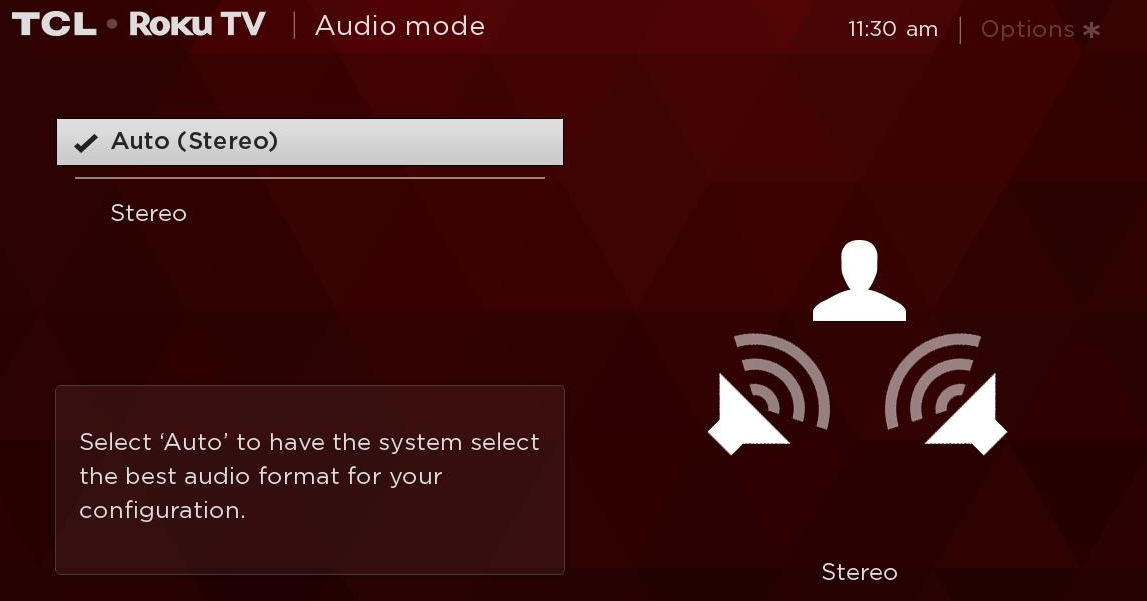
4) Set the TV audio mode to Auto (Stereo)
- Press Home on your remote.
- Select Settings.
- Select Audio.
- Select Audio mode.
- Highlight Auto (Stereo).
- Press OK to save.
Tip
If you’re using a soundbar or receiver, make sure your TV’s audio is set to the correct output (for example, HDMI ARC/eARC or Optical) and that the external audio device is on the correct input.
For additional help please reach out to TCL Support, we are happy to help.