

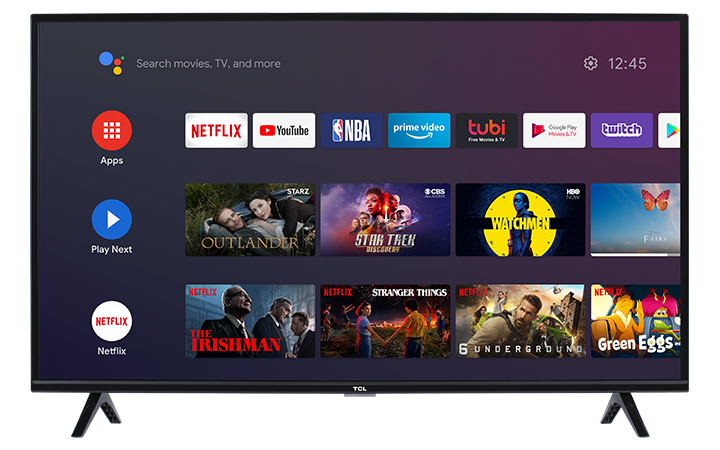

Your TCL Android TV remote may communicate with the TV in two ways: through an infrared, or IR, signal and through Bluetooth. The IR signal is used for basic remote functions and requires the remote to be pointed toward the TV. Bluetooth allows the remote to communicate wirelessly with the TV and is required for certain voice remote features, such as the Google Assistant button.
If your TCL Android TV remote is not responding, only works sometimes, or the voice button is not working, try the steps below.
Step 1: Check the Batteries
Start with the simplest step first.
- Open the battery compartment on the back of the remote.
- Remove the batteries.
- Reinsert the batteries, making sure the positive and negative ends are facing the correct direction.
- Try using the remote again.
If the remote still does not respond, replace the batteries with a new set.
Step 2: Make Sure Nothing Is Blocking the TV Sensor
For IR remote functions to work, the remote needs a clear path to the front of the TV.
- Point the remote directly at the front of the TV.
- Make sure there are no objects blocking the TV’s remote sensor.
- If you have a sound bar, center speaker, decorations, or other devices in front of the TV, move them out of the way.
- Try using the remote again from a normal viewing distance.
If the remote only works when pointed directly at the TV, the Bluetooth connection may need to be repaired.
Step 3: Restart the TV and Remote
Restarting both the TV and remote can help clear temporary connection issues.
- Remove the batteries from the remote.
- Restart your TCL Android TV:
- Press the Settings button on the remote, if available.
- Go to More Settings.
- Select Device Preferences.
- Select About.
- Select Restart.
- Confirm by selecting Restart again.
- Wait for the TV to restart and show the TCL logo.
- Reinsert the batteries into the remote.
- Try using the remote again.
If the remote is not working enough to navigate the menu, unplug the TV from the power outlet for about 30 seconds, then plug it back in.
Step 4: Re-Pair the Voice Remote
If the remote controls basic functions but the Google Assistant or voice button is not working, the remote may need to be paired with the TV again.
- Stand within about 3 feet of the TV.
- Press and hold the Home and OK buttons on the remote at the same time.
- Keep holding the buttons until the pairing process begins.
- Follow any on-screen prompts to complete pairing.
Once paired, test the remote again, including the Google Assistant button if available.
Step 5: Test the Remote’s IR Signal
If the remote is still not controlling the TV, you can test whether the remote is sending an IR signal. You will need a smartphone camera or digital camera with a live display.
Note: Some phone cameras filter out infrared light better than others, so this test may work better with a front-facing camera or in a darkened room.
- Open the camera app on your smartphone or digital camera.
- Point the camera at the front tip of the TCL remote.
- While looking at the camera screen, press and hold the Power button on the remote.
- Look for a flashing purple, white, or pink light from the tip of the remote.
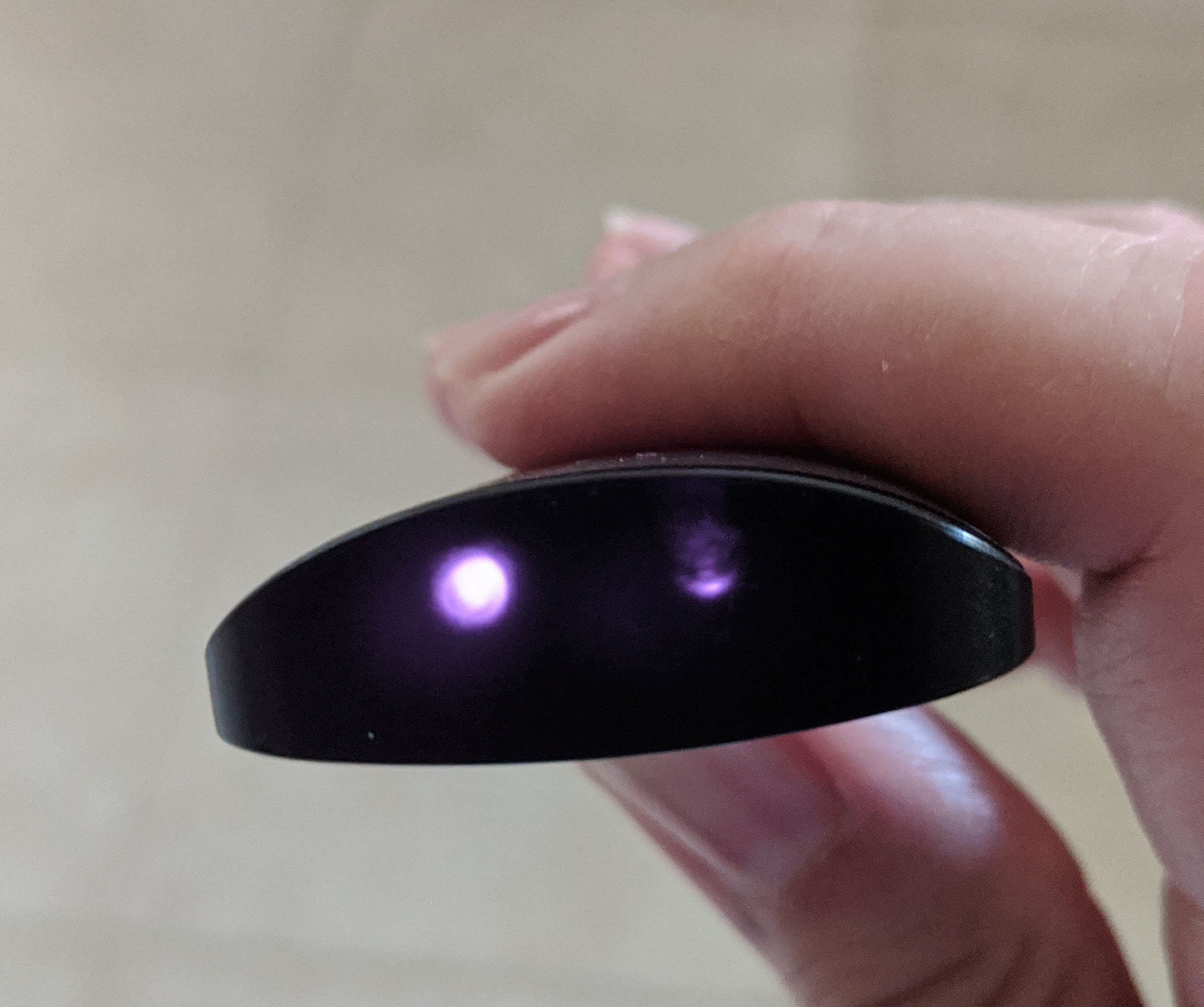
If you see a flashing light, the remote is sending an IR signal. Make sure nothing is blocking the TV’s IR receiver, which is usually located near the bottom front of the TV.
If you do not see a flashing light, try a new set of batteries and repeat the test. If there is still no light, the remote may need to be replaced.
Step 6: Check the TV’s Power Button
If the TV is not responding to the remote at all, check whether the TV responds using the physical button on the TV.
- Locate the button on the TV, usually underneath or behind the TCL logo area.
- Press the button to see if the TV responds.
- If the TV responds to the button but not the remote, continue troubleshooting the remote.
- If the TV does not respond to the button or the remote, the issue may be related to power or the TV itself.
Additional Tips
- Keep the remote close to the TV during pairing. Avoid pairing the remote from across the room.
- Make sure the batteries are fresh and installed correctly.
- Remove anything that may be blocking the front of the TV, especially sound bars or center speakers.
- If only the voice button is not working, re-pairing the remote is usually the best next step.
- Menu names and steps may vary slightly depending on your TCL Android TV model and software version.