

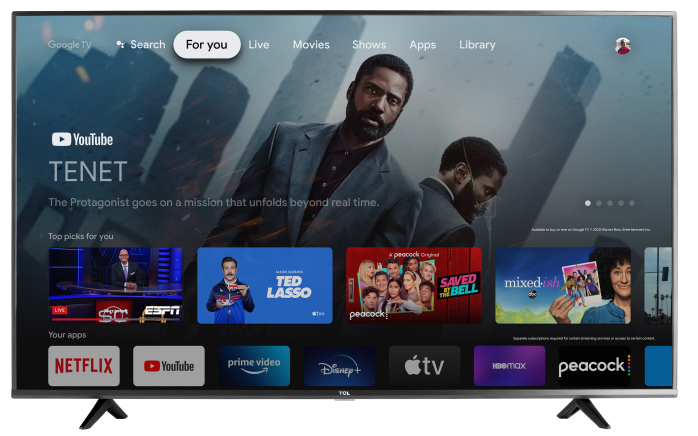

You can mirror your Android phone screen to your TCL Google TV to view photos, videos, websites, apps, presentations, and more on the big screen. Screen mirroring shows your phone’s screen on the TV, while casting from an app only sends selected content, such as a video, to the TV.
Menu names and available options may vary depending on your phone model, Android version, TV model, and software version.
Before You Start
Make sure:
- Your TCL Google TV is powered on.
- Your Android phone and TCL Google TV are connected to the same Wi-Fi network.
- Your phone is close to the TV.
- The app or phone feature you are using supports casting or screen mirroring.
- Your TCL Google TV software is up to date.
Google also recommends making sure the Google Cast app is enabled on the TV and that both devices are connected to the same Wi-Fi network.
Option 1: Mirror Your Phone Screen Using the Google Home App
Use this option when you want your entire phone screen to appear on the TV.
- On your Android phone, open the Google Home app.
- Select your TCL Google TV from the list of available devices.
- Tap Cast my screen or Cast screen.
- Tap Cast screen again to confirm.
- Your Android phone screen should now appear on the TV.
To stop mirroring:
- Open the Google Home app.
- Select your TCL Google TV.
- Tap Stop mirroring or Stop casting.
Google’s Chromecast built-in guidance also notes that Android users can mirror their screen through the Google Home app by selecting Cast screen/audio and choosing the TV.
Option 2: Cast from a Supported App
Use this option when you only want to send content from an app, such as YouTube or another Cast-enabled app, to the TV.
- Make sure your Android phone and TCL Google TV are on the same Wi-Fi network.
- Open a Cast-enabled app on your phone.
- Tap the Cast icon.
- Select your TCL Google TV.
- Choose the video, music, or content you want to play.
To stop casting, tap the Cast icon again and select Disconnect or Stop casting.
Option 3: Use Your Phone’s Built-In Cast or Screen Share Feature
Some Android phones include a built-in screen mirroring option in the Quick Settings menu.
- Swipe down from the top of your phone screen to open Quick Settings.
- Look for an option such as:
- Cast
- Screen Cast
- Smart View
- Screen Share
- Wireless Display
- Tap the mirroring option.
- Select your TCL Google TV from the list.
- Follow any on-screen prompts.
Note: The name of this feature depends on the phone manufacturer. For example, Samsung phones may use Smart View, while other Android phones may use Cast or Screen Cast.
If Your TCL Google TV Does Not Appear
Try the following:
- Confirm the phone and TV are connected to the same Wi-Fi network.
- Restart your phone.
- Restart your TCL Google TV.
- Move the phone closer to the TV.
- Turn Wi-Fi off and back on from the phone.
- Make sure the TV is not connected to a guest network or hotspot that blocks device discovery.
- Check for software updates on the TV.
- Check for updates to the Google Home app on your phone.
To restart your TCL Google TV:
- From the Google TV home screen, go to Settings.
- Select System.
- Select Restart.
To check for a TV software update:
- Go to Settings.
- Select System.
- Select About.
- Select System update.
Make Sure Google Cast Is Enabled on the TV
If your TV does not appear when trying to cast or mirror, check that Google Cast is enabled.
- From the Google TV home screen, go to Settings.
- Select Apps.
- Select See all apps.
- Select Show system apps, if needed.
- Find Google Cast.
- If it is disabled, select Enable.
- Restart the TV.
Important Notes
Screen mirroring may show anything visible on your phone screen, including notifications. For privacy, close personal apps and turn on Do Not Disturb before mirroring.
Some streaming apps may block screen mirroring due to content protection rules. If this happens, try using the app’s built-in Cast button instead of mirroring your entire phone screen.
Performance can vary based on Wi-Fi signal strength, phone model, TV software, and the app being used. For best results, keep both devices close to the router and use a strong Wi-Fi connection.