

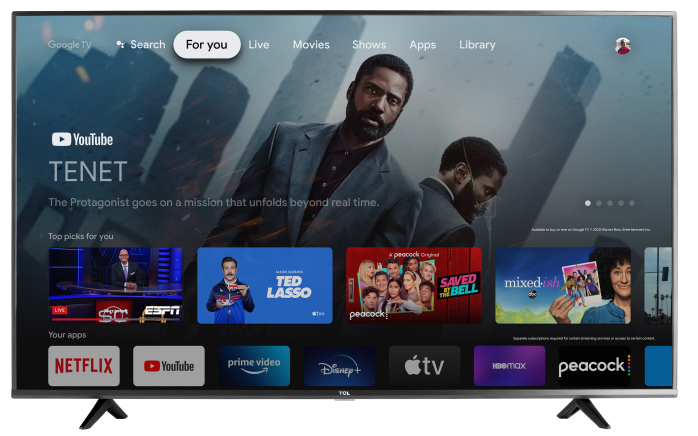
On a TCL Google TV, you can search for movies, then rent or buy them through Google TV. Anything you purchase or rent is added to your Library, so you can watch it again on your TV and other compatible devices using the same Google account.
Before you start
Make sure:
- Your TCL Google TV is connected to the internet
- You’re signed in with the Google account you want to use for purchases
Find a Movie on Your TCL Google TV
- Press the Home button on your remote.
- Select Search (magnifying glass) or press the Mic/Assistant button.
- Type or say the movie title.
- Select the title from the search results to open the details page.
Tip: If the title doesn’t appear, check your spelling and try searching by a shorter name (example: just the main title words).
Rent or Buy a Movie on a Google TV Device (TCL Google TV)
- Search for the movie you want to rent or buy.
- Open the title’s details page.
- Scroll toward the bottom to find the number of “ways to watch.”
- Choose whether you want to Rent or Buy, then follow the on-screen prompts to complete your purchase.
Helpful tips
- When you rent or buy a video, it’s added to the Library of the Google account used to make the purchase.
- If you want to buy a movie after renting it, you must wait until the rental expires. The rental cost can’t be applied to the purchase.
Rent or Buy a Movie on Mobile (Google TV App)
You can also rent or buy movies from the Google TV app on your phone or tablet, then watch them on your TCL Google TV.
Android
- Open the Google TV app.
- Search or browse for the title you want.
- Open the title’s details page.
- Tap the Down arrow, then select Google TV.
- Tap Rent or Buy and complete checkout.
iPhone & iPad
- Open the Google TV app.
- Search or browse for the title you want.
- Open the title’s details page.
- Tap the Down arrow, then select Google TV.
- Tap Rent or Buy and complete checkout.
Watch Previously Purchased Content (Your Library)
Important
- If you previously purchased content from Google Play Movies & TV, YouTube, Android TV, or Google TV, you can find it in your Library.
- Newly purchased TV shows from YouTube are only available in your YouTube library.
On a TCL Google TV
- From the Google TV home screen, select Library.
- Browse your movies and shows in the available sections.
In the Google TV App
- Open the Google TV app.
- Tap Your stuff, then tap Library.
Rental Periods (How long you have to watch)
Most rentals last:
- 30 days from the purchase date OR
-
48 hours after you start watching
…whichever comes first. - During the rental window, you can watch the movie as many times as you want until it expires.