

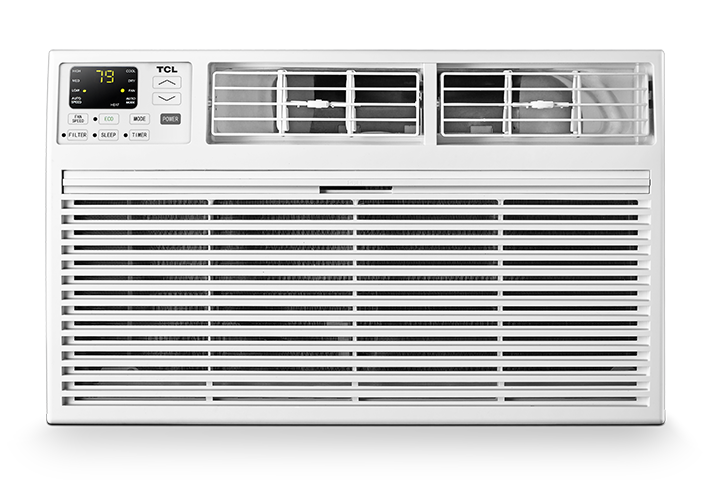
If your TCL air conditioner will not connect to Wi-Fi using CF Mode, try the steps below in order. CF Mode is the standard connection mode used during setup in the TCL Home App.
Before You Start
Make sure:
- Your mobile device is connected to your home Wi-Fi network.
- You are using the TCL Home App.
- Your Wi-Fi router is powered on and working.
- Your mobile device is close to the air conditioner during setup.
- If your router has separate 2.4 GHz and 5 GHz networks, connect your mobile device to the 2.4 GHz Wi-Fi network before starting setup.
1. Confirm the Unit Is in CF Mode
When setup begins, the app and air conditioner should automatically default to CF Mode.
If the air conditioner is not in CF Mode:
- Press the Display button on the remote control 6 times.
- Wait about 8 to 10 seconds.
- You should hear two beeps.
- The air conditioner display should show CF.
- Once CF appears on the unit, continue setup in the TCL Home App.
2. Follow the CF Mode Setup Steps in the App
- Open the TCL Home Comfort App and follow the on-screen prompts to add your air conditioner.
- When prompted, select or continue with CF Mode.
- Enter your Wi-Fi network name and password carefully.
- Wait for the app to complete the connection process.
- Do not close the app or turn off the air conditioner while setup is in progress.
3. If CF Mode Fails, Reset CF Mode and Try Again
- If the connection fails while using CF Mode, reset the wireless setup back to CF Mode.
- Press the Display button on the remote control 6 times.
- Wait about 8 to 10 seconds.
- Listen for two beeps.
- Confirm the unit displays CF.
- Try adding the air conditioner in the app again.
4. Try AP Mode Instead
- If CF Mode still does not work, try adding the air conditioner using AP Mode.
- AP Mode connects your mobile device directly to the air conditioner during setup, then transfers your Wi-Fi information to the unit.
- Open the TCL Home App.
- Start the process to add your air conditioner.
- Follow the app or user manual instructions for connecting using AP Mode.
- Complete the setup steps shown in the app.
- If AP Mode also fails, continue with the steps below.
5. Restart Your Wi-Fi Router
- A router restart can clear temporary network issues that may prevent the air conditioner from connecting.
- Unplug your Wi-Fi router from power.
- Wait at least 15 seconds.
- Plug the router back in.
- Wait for the router to fully restart and reconnect to the internet.
- Once your Wi-Fi is working again, try connecting the air conditioner in the app.
6. Restart Your Mobile Device
- Restart the phone or tablet that has the TCL Home Comfort App installed.
- After the device restarts:
- Connect it back to your home Wi-Fi network.
- Open the TCL Home Comfort App.
- Try the setup again.
7. Restart the Air Conditioner
- Restarting the air conditioner can reset the wireless connection process.
- Turn the air conditioner off.
- Unplug the unit from the wall outlet.
- Wait 3 minutes.
- Plug the unit back in.
- Turn the air conditioner on.
- Place the unit back into CF Mode by pressing Display on the remote control 6 times, if needed.
8. Try Connecting Again
- After restarting the router, mobile device, and air conditioner, try adding the unit in the TCL Home Comfort App again.
- Start with CF Mode.
- If CF Mode fails again, try AP Mode.
- Make sure the Wi-Fi password is entered correctly.
- Keep your mobile device close to the air conditioner during setup.
Still Need Help?
If the air conditioner still will not connect after trying both CF Mode and AP Mode, please contact TCL Customer Support for additional assistance. Have your air conditioner model number, mobile device type, and Wi-Fi router information ready, if available.