


There are multiple ways to manage your channel list. You can do it using (1) the on-screen menus of your TCL Roku TV or (2) your Roku account with the Roku App from your mobile device, or by going directly to the https://channelstore.roku.com website. Reminder: Once you add a channel to your TCL Roku TV, it will add that same channel from all streaming devices associated with your Roku account. To learn how to add channels, select your device below.
1. On your TCL Roku TV 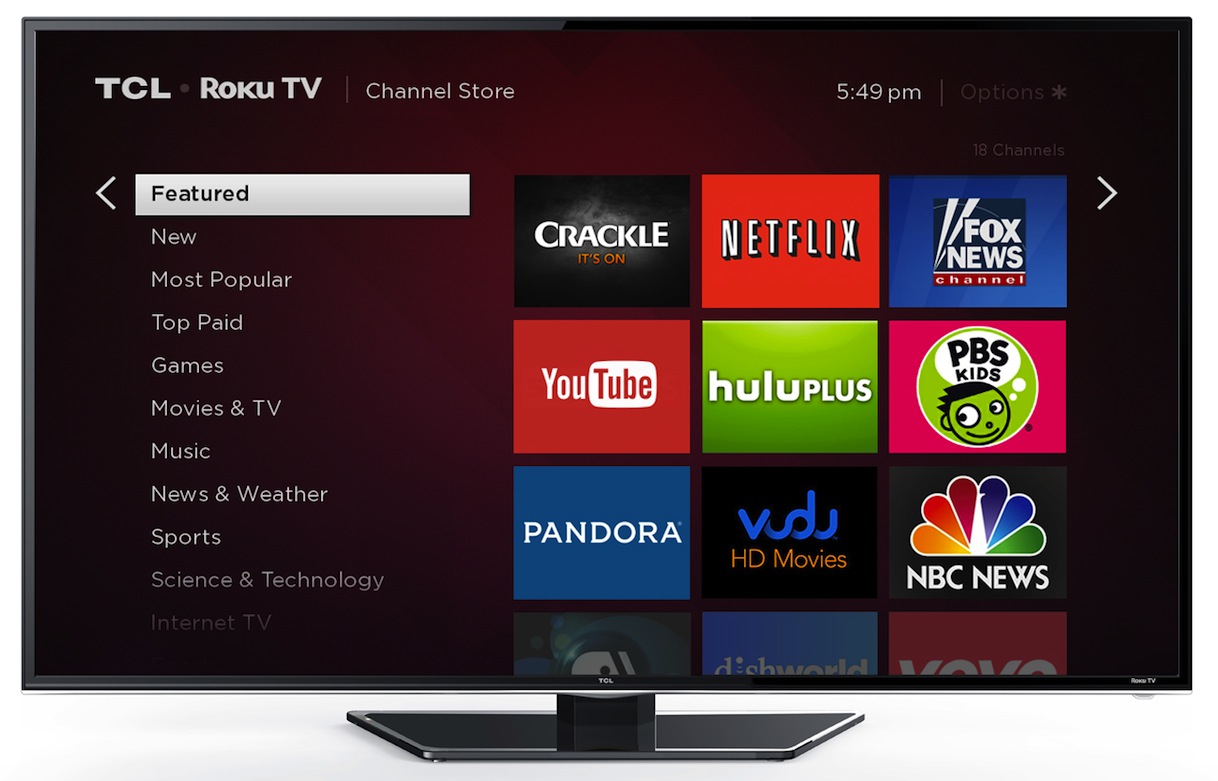
- Press
 on your remote to open the main screen.
 - Scroll down and select Streaming Channels to open the Channel Store.
- At the top of the Channel Store is a list of featured, new and popular categories to explore.
- Scroll down and select Search Channels
- Press the right arrow
 button and type channel name in the search box
 - Scroll to the right to select from the list
- Press the
 button to select the channel
 - Press the button to add the channel
- If you have a Roku account PIN, then you will be required to enter it.
2. On the Roku Mobile App 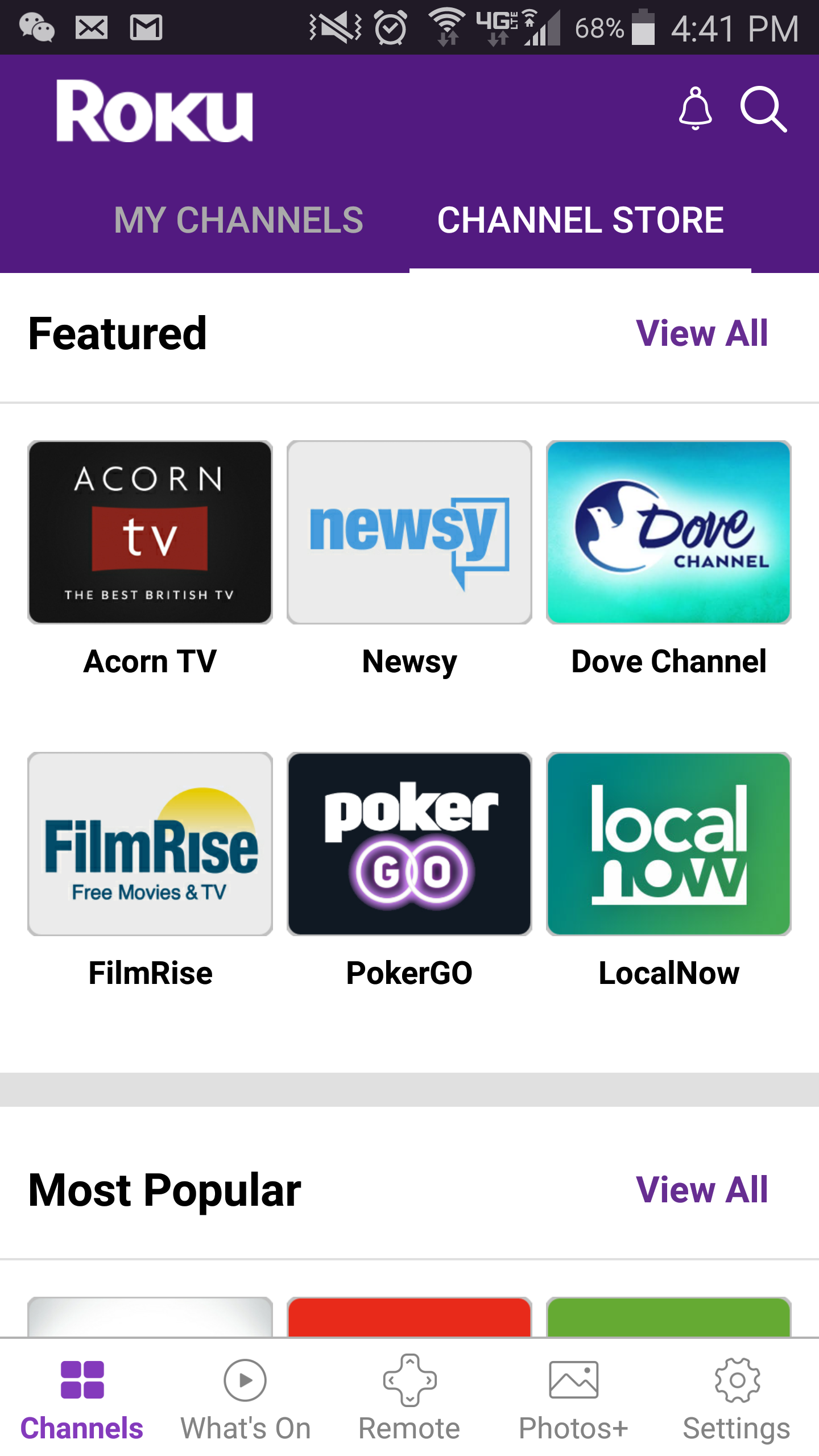
Want to learn how to install the Roku mobile app, click here.
- Launch the Roku mobile app.
- Tap the Channel Store tab
- On the Channels tab, select Channel Store from the top menu.
-
Press the Search
 icon
icon - Type the channel name on the Search box and select icon to add channel on your list
- If you have a Roku account PIN, then you will be required to enter it