

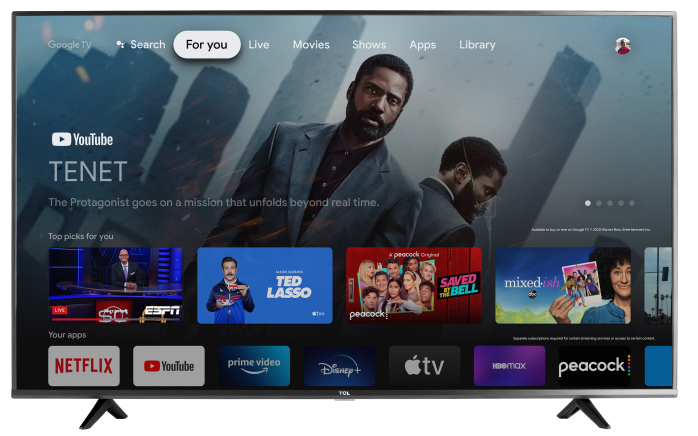

Switching inputs on your TCL Google TV lets you move between connected devices such as a cable or satellite box, gaming console, Blu-ray player, streaming device, or antenna.
Note: Menu names, remote buttons, and available inputs may vary slightly depending on your TV model and software version.
Change the Input Using Your Remote
Option 1: Use the Input Button
If your TCL remote has an Input or Source button:
- Press the Input or Source button on the remote.
- The available inputs will appear on the screen.
Use the directional buttons to highlight the input you want, such as:
- HDMI 1
- HDMI 2
- HDMI 3
- Live TV or Antenna
- Press OK to select the input.
- Your TV will switch to the selected device.
Option 2: Open Inputs from the Settings Menu
If your remote does not have a dedicated Input button:
Press the Settings button on your TCL Google TV remote.
Select Inputs.
Choose the input or connected device you want to use.
Press OK.
Depending on your TV model, you may also find input settings under:
Settings > All settings > Channels & Inputs > External Inputs
Choosing the Correct HDMI Input
HDMI ports on your TV are labeled HDMI 1, HDMI 2, HDMI 3, and so on.
For example, if your gaming console is connected to HDMI 2, select HDMI 2 from the TV's input list.
Some TCL Google TVs may automatically recognize a connected device and display its name, such as a game console, streaming player, or cable box.
If Your Device Does Not Appear
If you cannot see the connected device or the TV displays No Signal:
- Make sure the connected device is turned on and awake.
- Make sure the HDMI cable is securely connected to both the TV and the device.
- Confirm you selected the HDMI input that matches the port being used.
- Disconnect and reconnect the HDMI cable.
- Try a different HDMI port on the TV.
- If available, try another HDMI cable.
- Restart the TV and the connected device.
Restart Your TCL Google TV
Open Settings.
Select System.
Select Restart.
After the TV restarts, select the correct input again.
Still Need Help?
If your TCL Google TV continues to display No Signal, confirm that the connected device works with another HDMI port or HDMI cable. If the problem continues, contact TCL Support for additional assistance.