


TCL Google TV System Settings Guide
This guide provides a quick overview of the options found under the System settings on a TCL Google TV.
The options listed below are based on the TCL 65QM850G.
Available settings and menu names may vary by model, region, connected devices, selected input, Google account status, and software version.
Open the System Settings
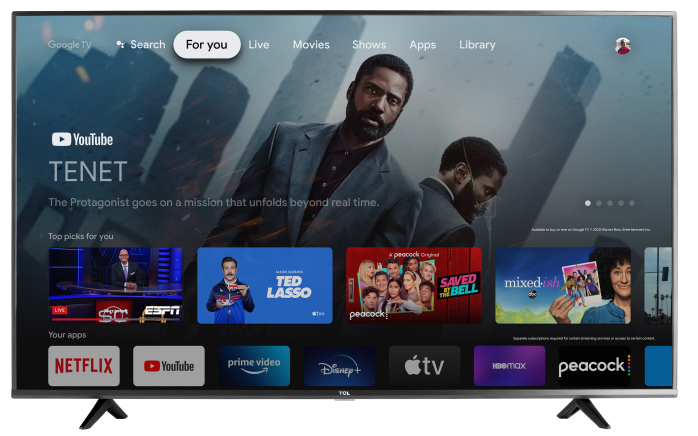
- Press the Home button on the TCL Google TV remote.
- Select the Settings icon.
- Select All settings, if shown.
- Select System.
The following sections may appear.
Accessibility
Accessibility settings make the TV easier to see, hear, and navigate.
Options may include:
- Captions: Turns captions on and adjusts how they appear.
- High Contrast Text: Makes supported on-screen text easier to read.
- Text to Speech: Reads supported on-screen text aloud.
- Accessibility Shortcut: Creates a quicker way to turn an accessibility feature on or off.
- TalkBack: Provides spoken feedback while navigating supported menus.
- Switch Access: Allows supported external switches or controls to navigate the TV.
- Sling Accessibility: Manages accessibility options associated with Sling content, when available.
About
The About menu contains software, device, and product information.
Options may include:
- Software Update: Checks for and installs available TV software.
- Device Name: Displays or changes the name used to identify the TV on a network.
- Reset: Returns the TV to its factory settings.
- Status: Displays network, device, and system information.
- Legal Information: Provides licenses, notices, and other legal details.
- Android TV Model: Identifies the system model.
- Android TV OS Version: Displays the installed operating-system version.
- Kernel Version: Displays technical system information.
- Android TV OS Build: Identifies the installed software build.
- Product Information: Displays information specific to the television.
Important: A factory reset removes Google accounts, downloaded apps, Wi-Fi information, and customized settings. Use it only when necessary.
Date and Time
This menu controls the TV’s clock and regional time settings.
Options may include:
- Automatic Date and Time
- Set Date
- Set Time
- Set Time Zone
- Use 24-Hour Format
Automatic date and time may require an internet or broadcast connection.
Language
Changes the language used in the TV’s menus. Available languages may include:
- English
- Español
- Français
Changing the TV language may also affect voice recognition and certain app menus.
Keyboard
Controls the on-screen keyboard used for searches, passwords, and text entry.
Options may include:
- Current Keyboard: Selects the active keyboard.
- Gboard Settings: Adjusts languages, suggestions, privacy options, and other Gboard features.
- Manage Keyboards: Enables or disables installed keyboards.
Storage
Displays how the TV’s available storage is being used.
Options may include:
- Internal Storage: Shows space used by apps, system files, and other saved data.
- External Storage: Appears when a compatible USB storage device is connected.
This menu may also allow you to view or manage individual app storage. Be careful when clearing app data because doing so may remove that app’s settings and sign-in information.
Ambient Mode
Ambient Mode controls what appears when the TV is idle or acting as a screensaver.
Options may include:
- Google Photos
- Art Gallery
- Experimental
- Weather
- Time
- Personal Photo Data
- Portrait Google Photos
- Personal Photo Curation
- Slideshow Speed
Google Photos and personalized options may require the TV to be signed in to a Google account.
Power and Energy
Controls how the TV starts, enters standby, and manages energy use.
Options may include:
- Power-on Behavior: Chooses what the TV displays when it is turned on.
- Energy Saver: Sets when the display turns off after a period of inactivity.
- Sleep Timer: Turns the TV off after a selected amount of time.
- Quick Start: Allows the TV to start more quickly from standby.
- Screenless Service: Allows supported services to remain available while the screen is off.
Using Quick Start or Screenless Service may increase standby energy use.
Cast
Controls whether compatible devices on the same Wi-Fi network can control media being cast to the TV.
Options may include:
- Always
- While Casting
- Never
Casting requires the TV and casting device to be connected to the same network.
System Sounds
Adjusts the volume of sounds heard while navigating TV menus.
Options may include:
- Off
- Low
- Medium
- High
Changing this setting does not adjust the volume of movies, programs, or connected devices.
AirPlay and HomeKit Settings
Opens the Apple AirPlay and HomeKit controls on supported models.
AirPlay allows compatible Apple devices to share videos, photos, music, or their screen with the TV. HomeKit allows supported TV controls through Apple’s Home app.
The TV and Apple device normally need to be connected to the same Wi-Fi network.
TCL Account and Sign-In
Allows you to add or manage a TCL account.
Some TCL services and smart features may require a TCL account in addition to the Google account used for Google TV.
Parental Controls
Allows you to restrict supported over-the-air programs based on their rating or age level.
Initial setup may include:
- Create Password
- Confirm Password
Keep the four-digit parental-control password in a secure place. It may be required to change restrictions later.
Parental controls provided by streaming apps must normally be managed within each individual app.
Game Master
Game Master provides access to supported gaming features, which may include:
- Variable Refresh Rate
- Automatic Low Latency Mode
- Gaming status and performance information
- Other model-specific gaming controls
Game Master may appear only when the TV is switched to an HDMI input and a compatible gaming device or signal is detected.
Advanced Settings
Additional TV system options may include:
- Standby LED: Controls the TV’s status light while the television is in standby.
- Usage Mode: Selects the environment in which the TV is being used.
For normal household use, select Home Mode if that option is available. Store or Retail Mode is intended for retail displays and may change picture settings or display promotional content.
Restart
Restarts the TV’s operating system.
Available choices may include:
- Restart
- Cancel
Restarting can clear temporary performance or menu problems without erasing downloaded apps, accounts, or customized settings.
A restart is different from the Reset option found under About. Reset returns the TV to factory settings and erases saved information.
Find More Information About Your TV
Some TCL Q, QM, X11, and RM Series Google TVs include a built-in user manual. From the Home screen, open Apps, then select User Manual or User Guide, if available.
Because features vary between models and software versions, the built-in manual or the manual available through TCL Support will provide the most accurate information for your television.